
How to Complete Table Grids
-
1
Add a New Row
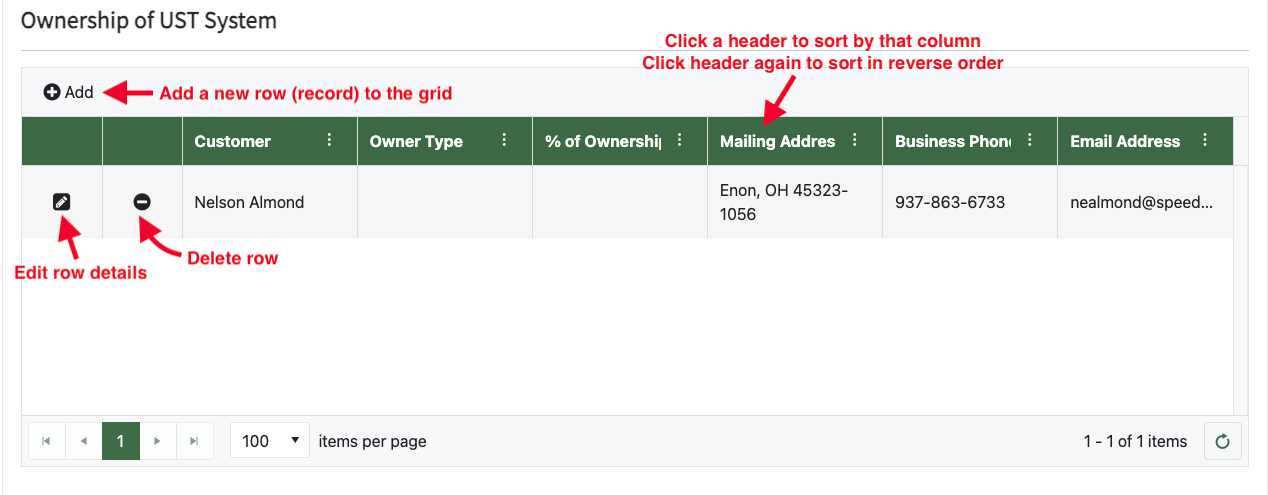
When you see a table grid, it will normally appear blank (no rows). To add a row, click on the "+ Add" or "+ Add New" icon/text on the top left of the grid.
-
2
Edit an Existing Row
Click on the pencil icon to edit an existing row.
-
3
Delete an Existing Row
Click on the minus sign icon to delete an existing row.
-
4
Sort Data by Column Header
Click on a header to sort by that column. Click again to sort in reverse by that column.
-
5
Resize Columns by Dragging Edges
Click-hold/drag to resize a column from one of the column's edges.
Check out this YouTube Video for more!