
How to set and manage your security questions
-
1
Navigate to the AccessDEQ portal settings
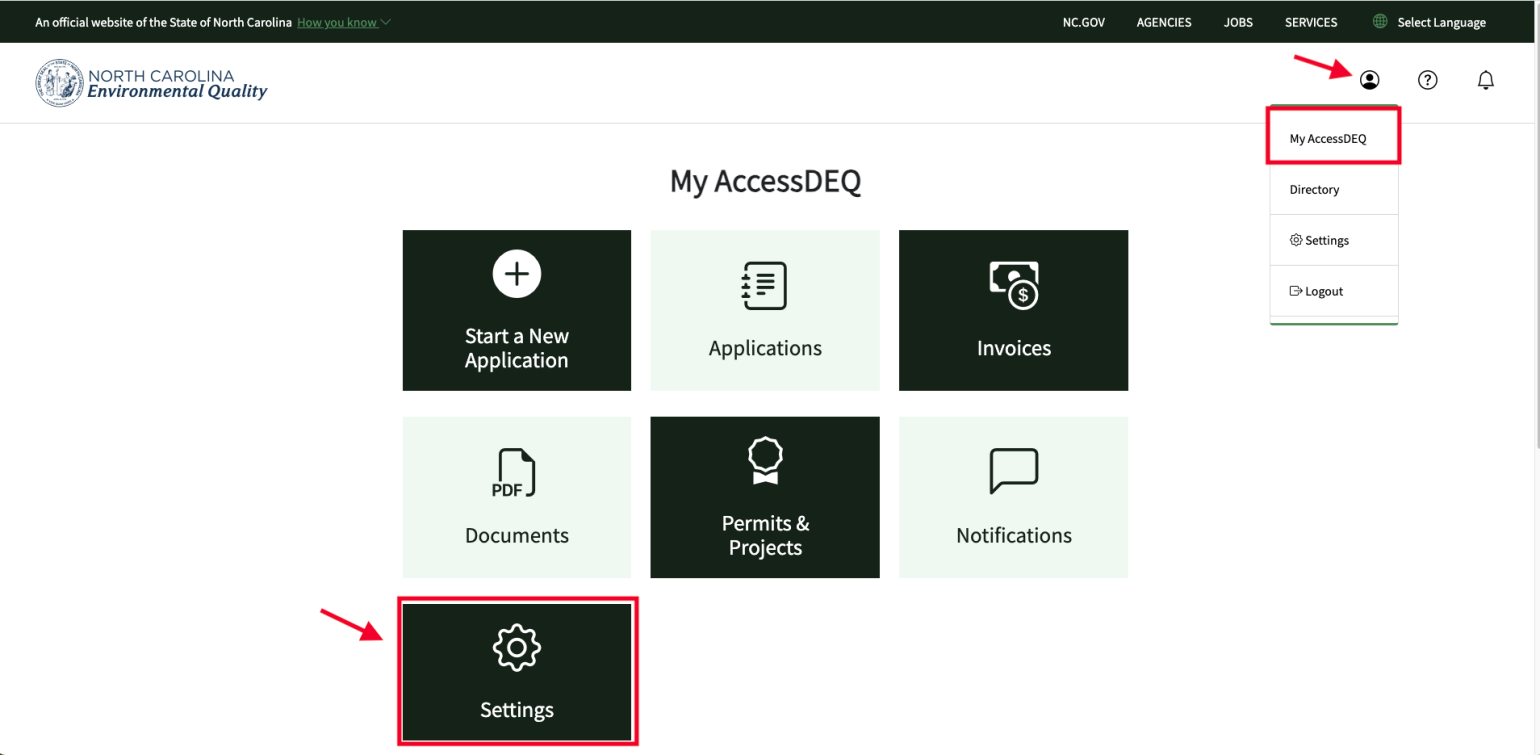
After logging into the portal, click on the person icon (dropdown menu) on the top right of the screen and select “My AccessDEQ”. Then, select the “Settings” tile.
-
2
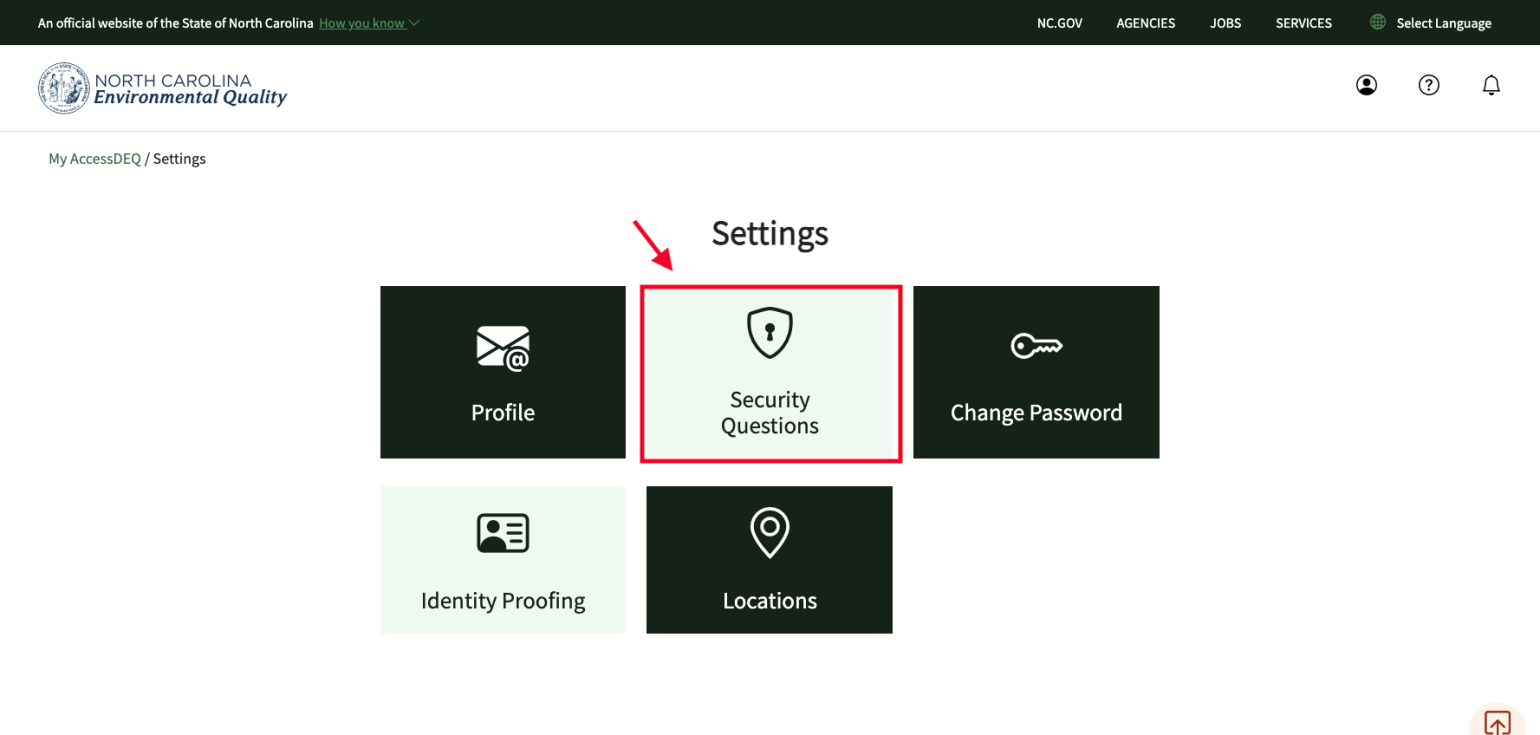
Open the security questions tile
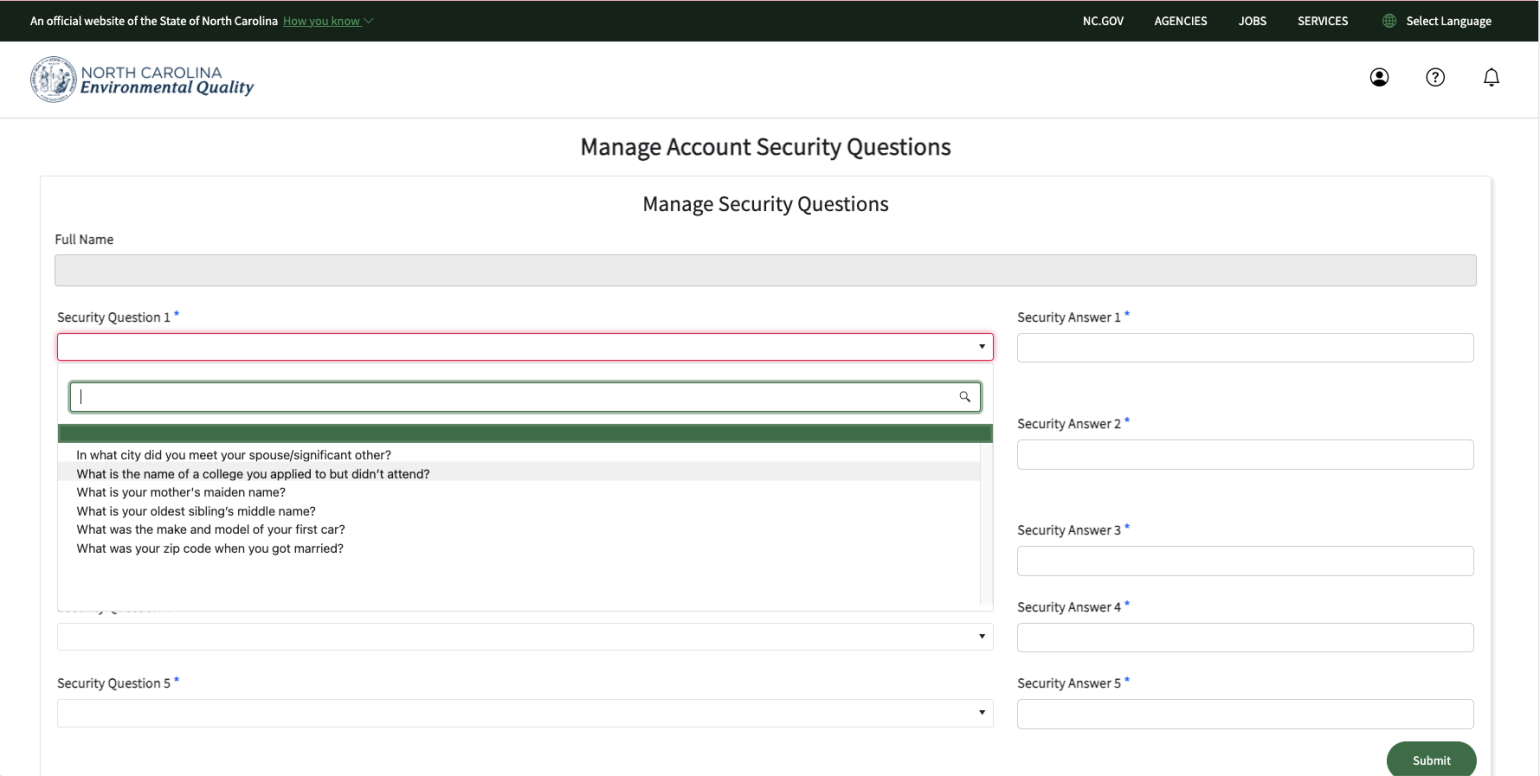
After you open the “Security Questions” tile, choose a question from each of the 5 list boxes, and enter your answer. Repeat this for all 5 questions, and when finished, click on the green “Submit” button on the bottom right of the screen.
Notes
- Record your answers in a secure location for future reference.
- Answers are case-sensitive.
- Avoid including any leading or trailing spaces when entering your responses.