Submitting a Notice of Termination Request for an NCG01/NCG25

After you submit a Notice of Termination request along with the required supporting documentation, internal DEQ staff will begin reviewing your submission. Termination is not immediate and may take some time, depending on staff workload and backlog. You will automatically receive an email once a decision has been made on the request. If you start a Notice of Termination but do not submit it, you can return to it later by navigating to the “Applications” tile, where you can resume working on or submit the request.

How to Submit a Notice of Termination

  • 1

    Navigate to Permits & Projects

    From the Home screen, click on the “Permits & Projects” tile or select it from the menu navigation on the left side of the screen.
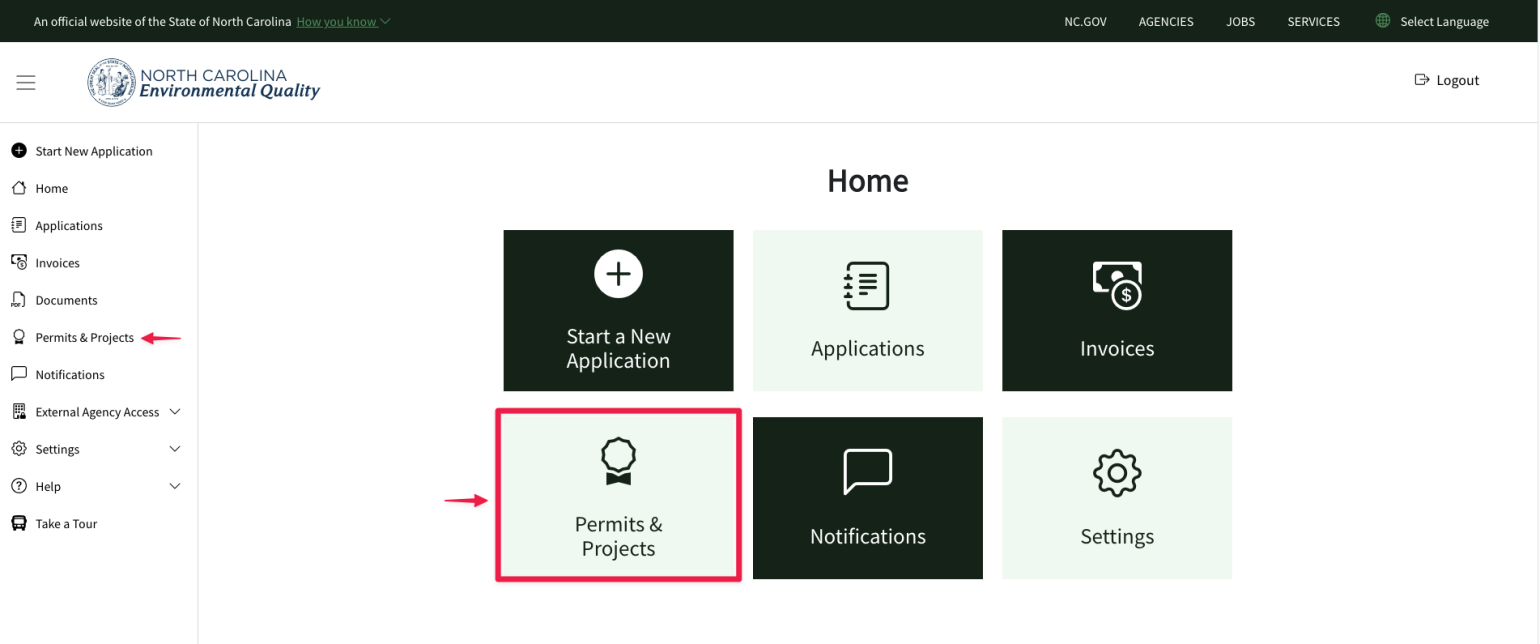
    A screenshot of where to find the permits and projects menu in the AccessDEQ Portal
  • 2

    Open the Permit Record

    Click on the hyperlink of the permit record you wish to terminate. This link appears on the far left of the table grid, typically in the permit number field.
    Note: A future portal update will add a “Terminate Permit” option under the “Actions” button on the far right. The rollout date is TBD. Until then, you must open the permit record to begin the termination process.
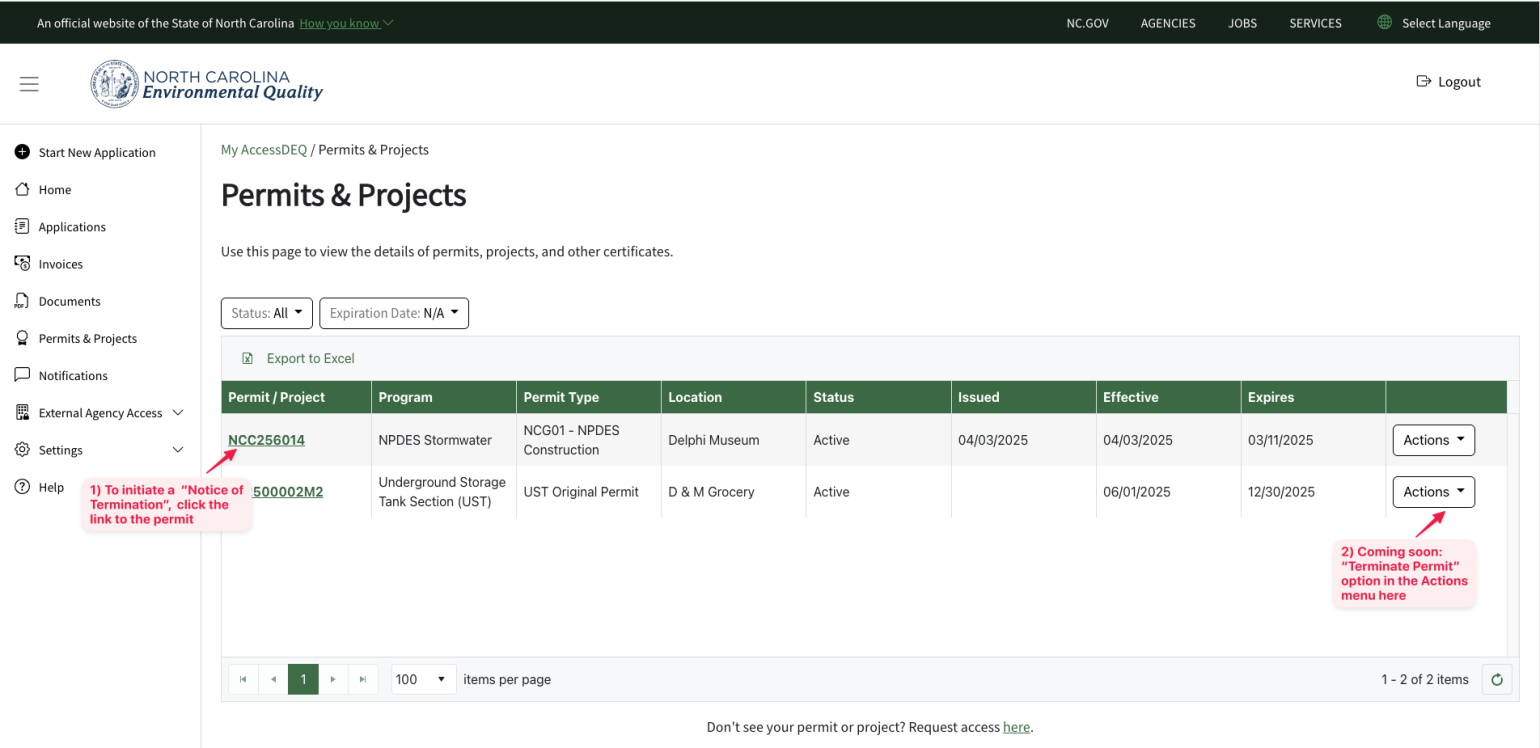
    A screenshot of where to find the permit record and Actions menu in the AccessDEQ portal
  • 3

    Terminate Permit and Complete the Form Steps

    Click on the green “Terminate Permit” button.
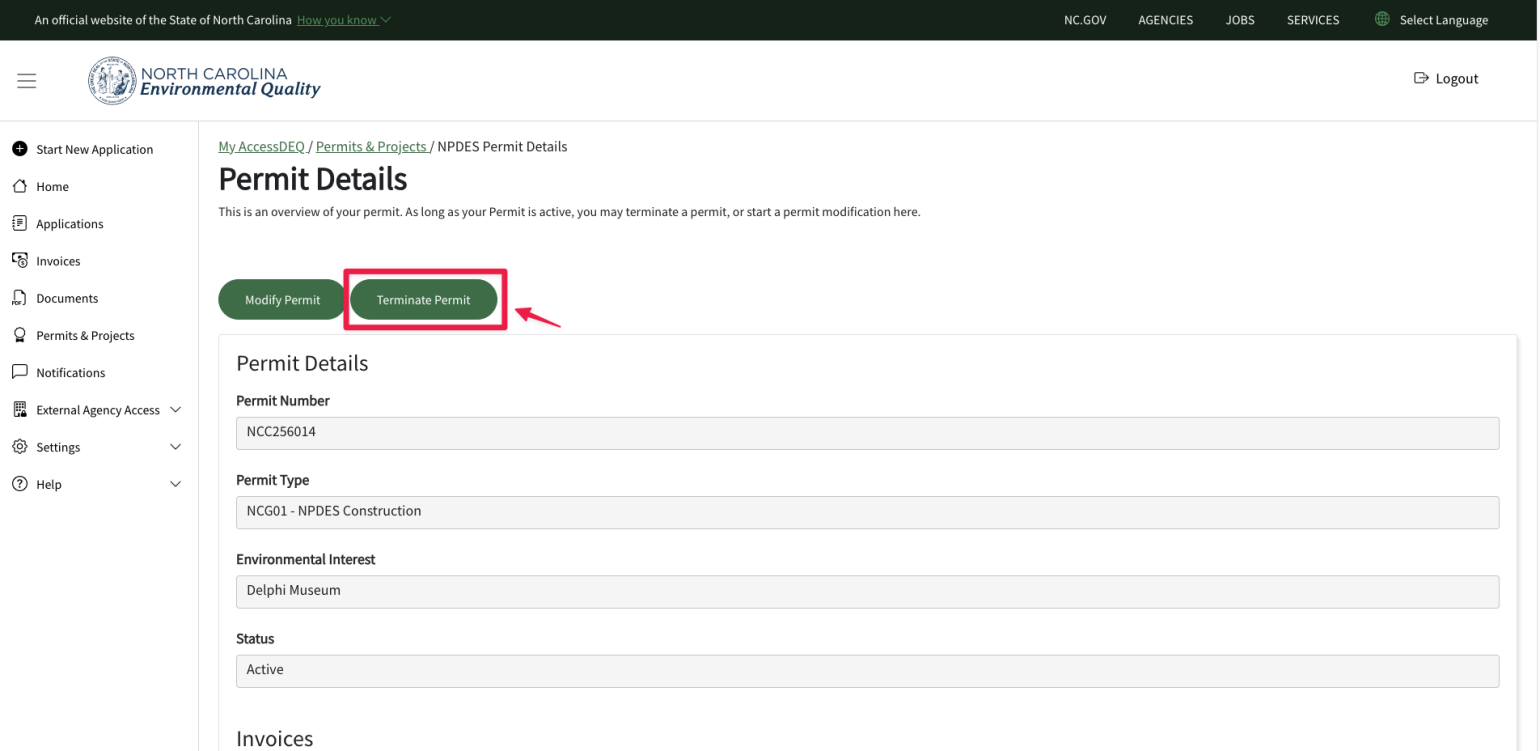
    A screenshot of the Terminate permit button


     Then, follow the six steps presented in the form stepper.
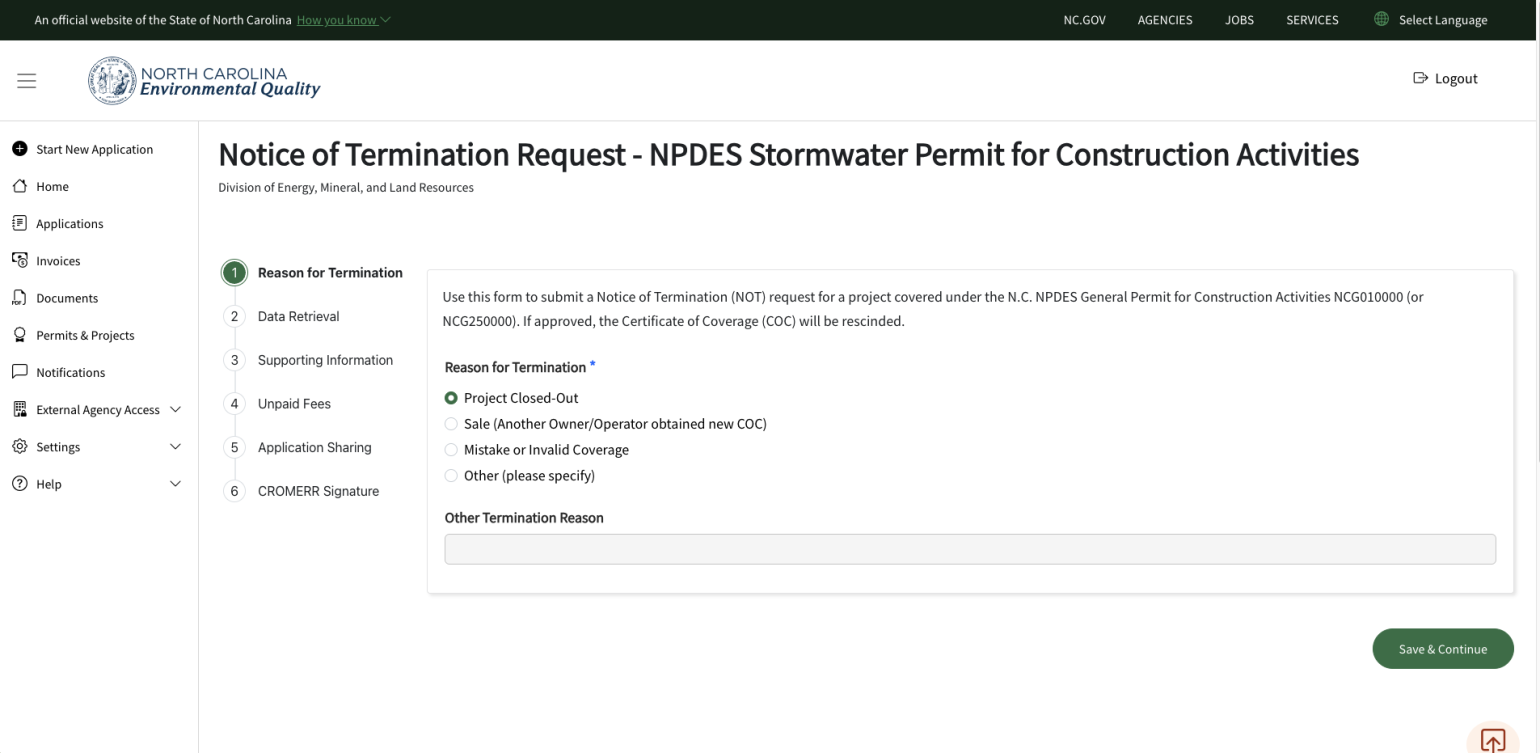
    A screenshot of the 6 steps to follow in the form stepper
  • 4

    Upload Supporting Documentation

    Important: You must upload supporting documentation as described in the red text above the document upload button.
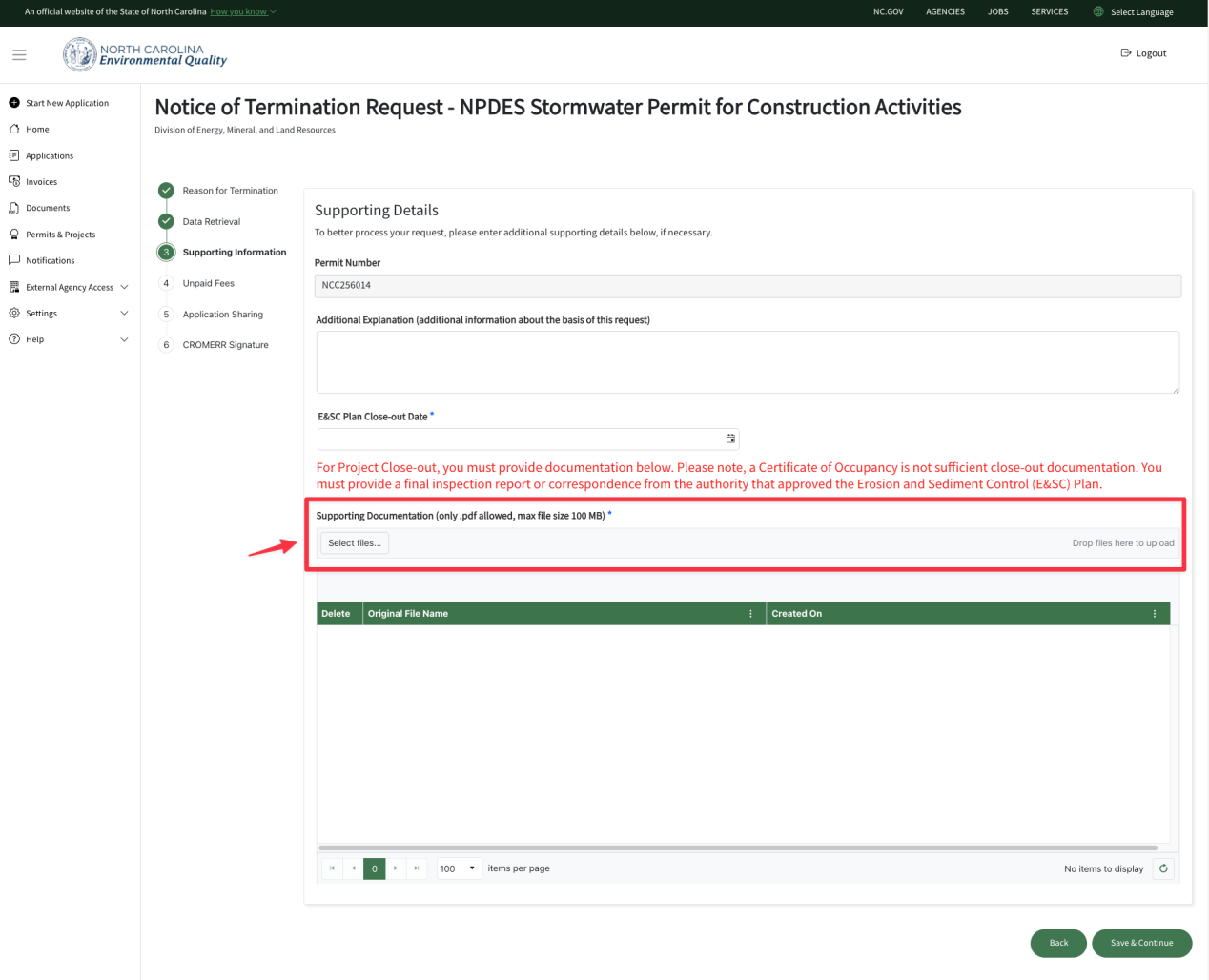
    A screenshot of where to upload supporting documentation to go along with the Termination request


    Check out this YouTube video for more!