
How to update two-factor authentication methods
-
1
Sign in to the AccessDEQ portal
Go to the AccessDEQ tab on the NCDEQ website, scroll down, and click on the AccessDEQ Permit Portal block.
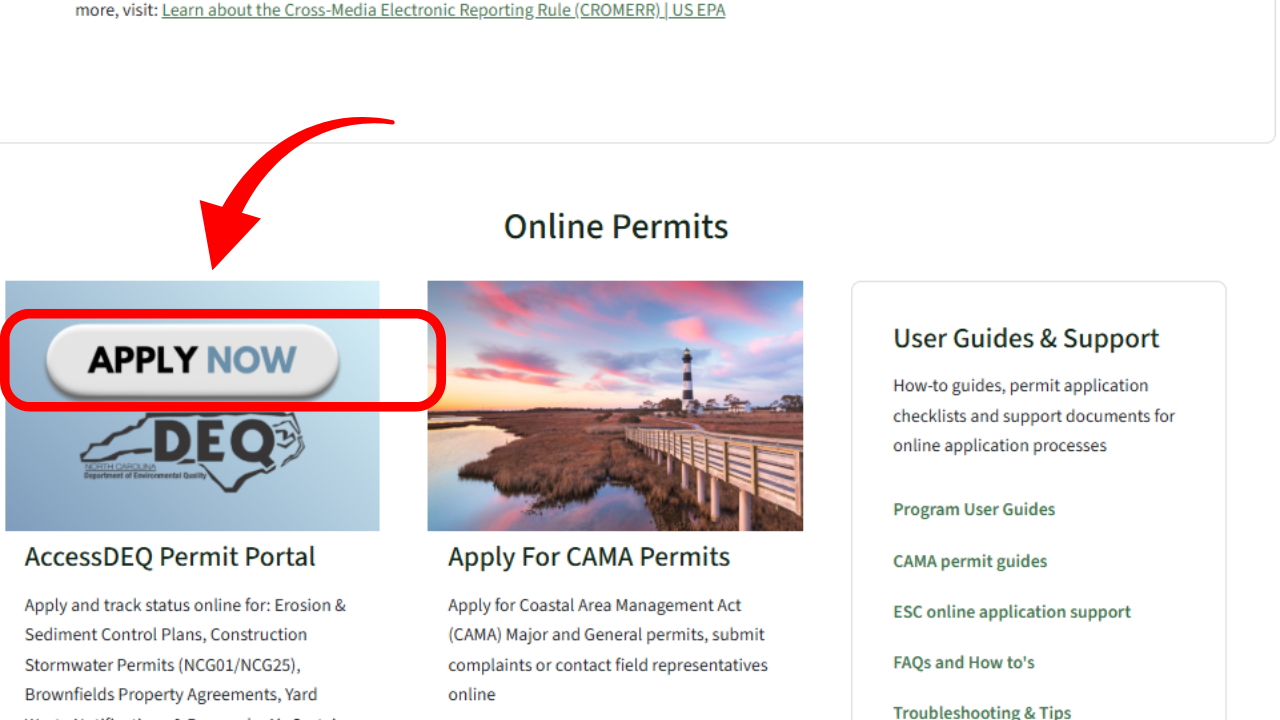
-
2
Navigate to account security
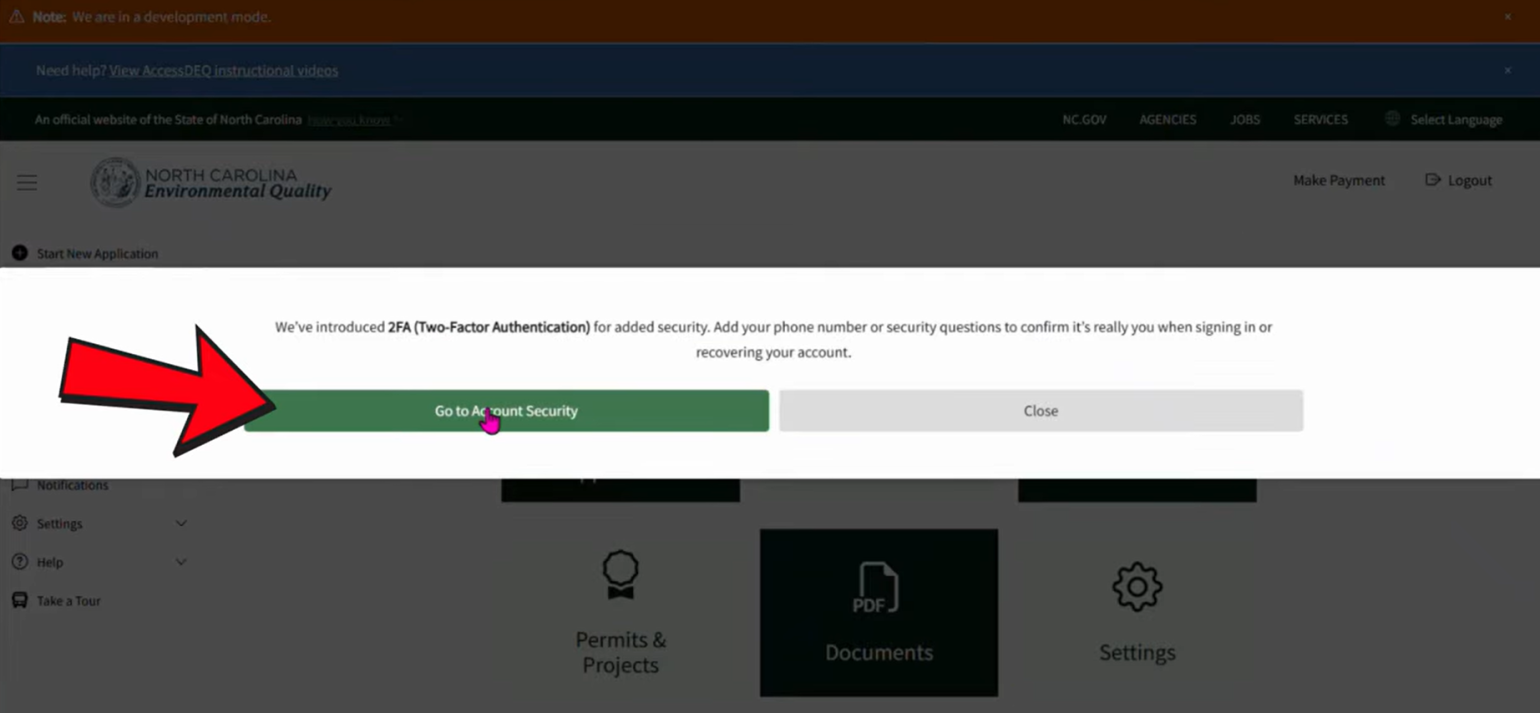
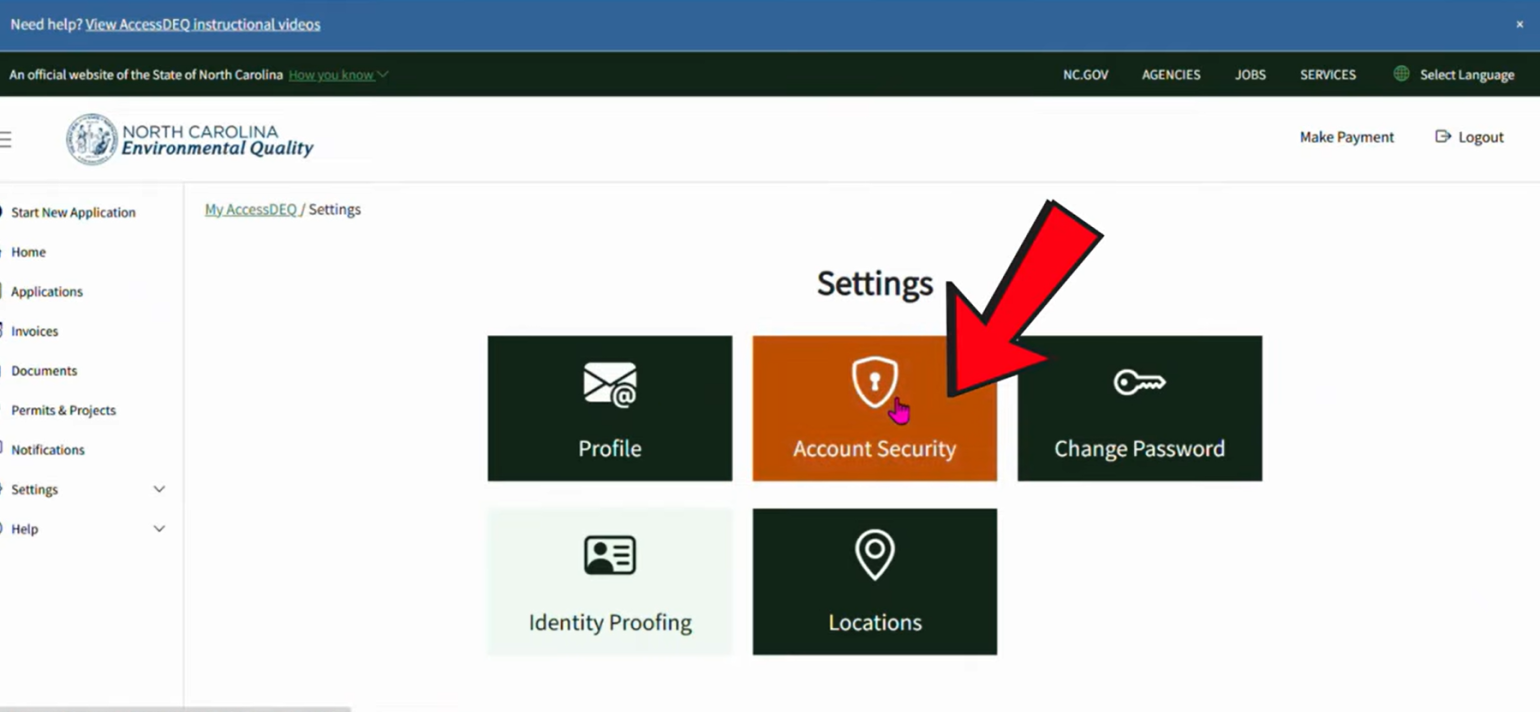
After you sign in, a message will appear on your screen prompting you to go to Account Security.
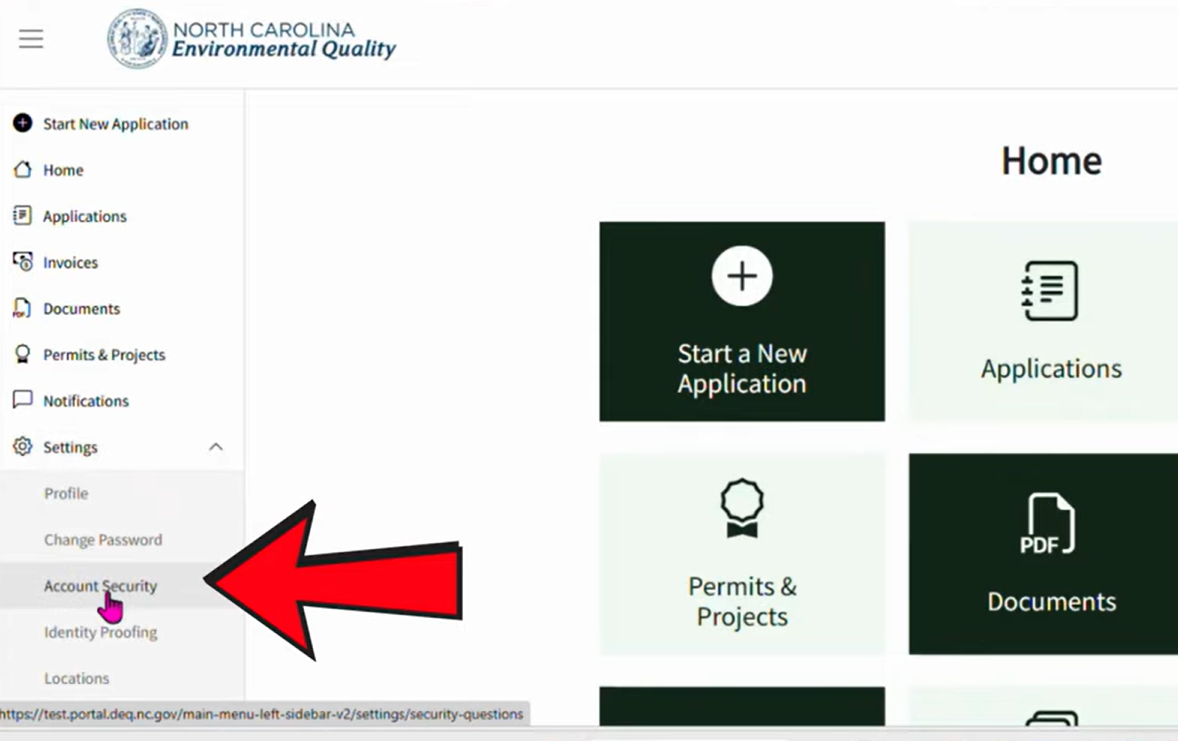
You can also find “Account Security” under Settings in the left-hand navigation menu.
AND under the “Settings” tab from the home screen.
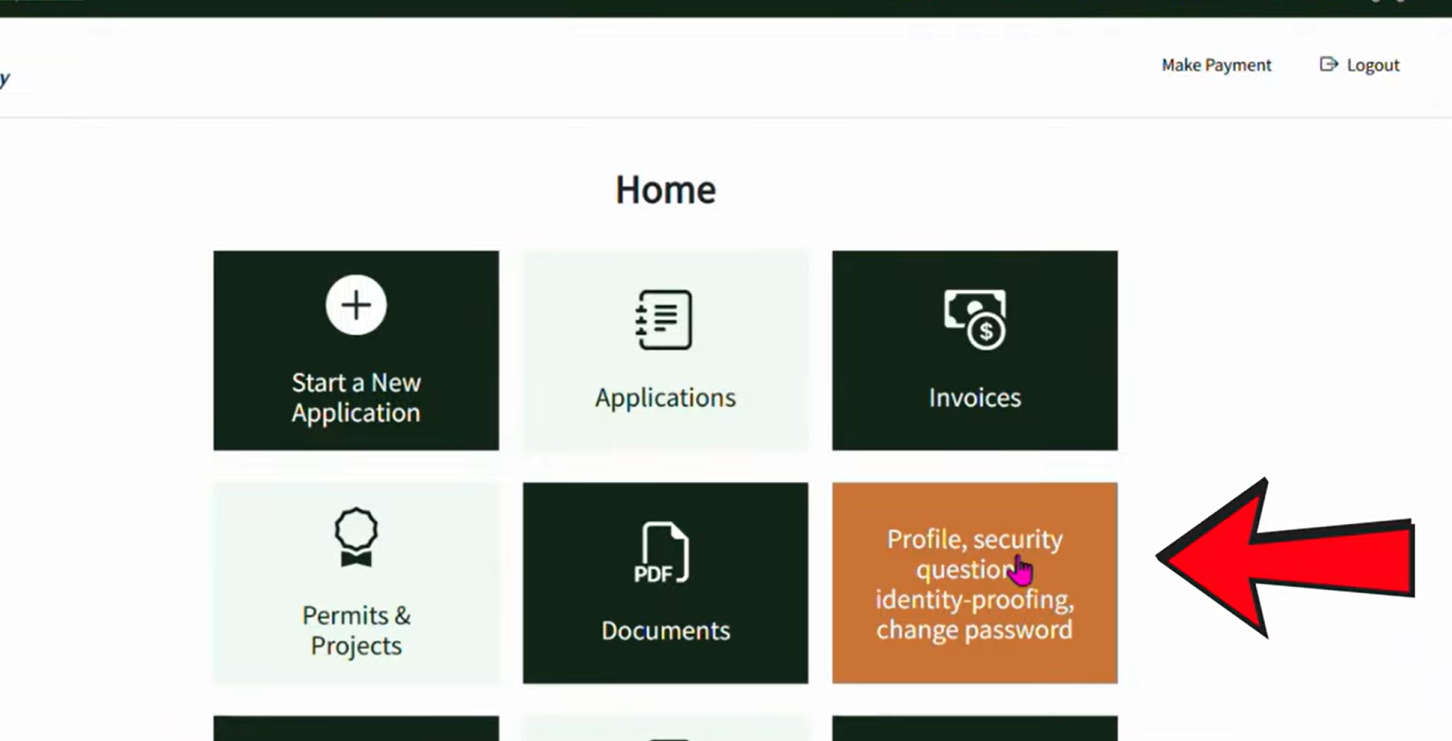
-
3
Choose your preferred method of communication
On the Account Security screen, you can verify your phone number, email and update your security questions.
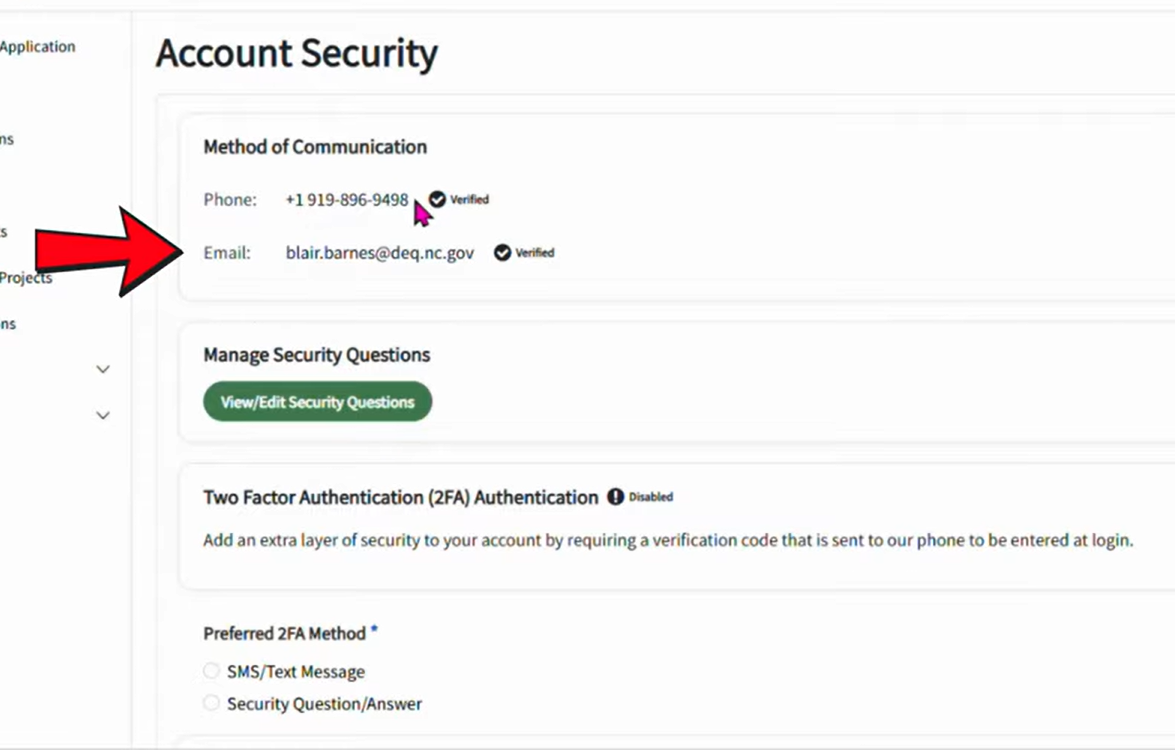
Once completed, simply choose your preferred method of communication to complete the two-factor authentication setup.
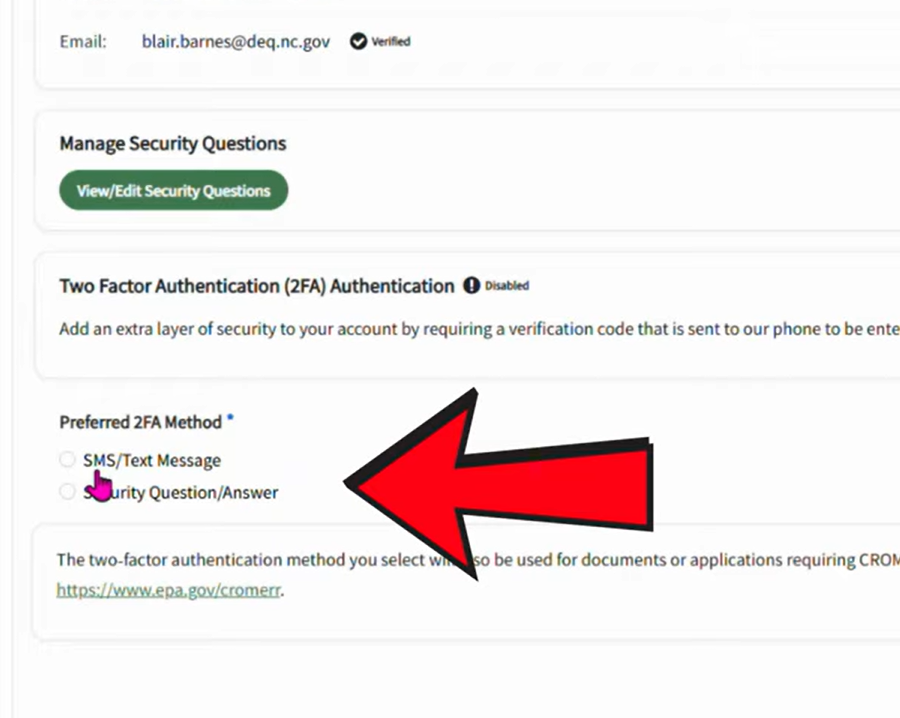
Please note --- the two‑factor authentication method you select will also be used for documents or applications requiring CROMERR Compliance.
After you’ve chosen your method of communication, select save to update your security preferences.
Check out this YouTube video for more!