
How to get Identity Proofed
-
1
Navigate to the AccessDEQ portal
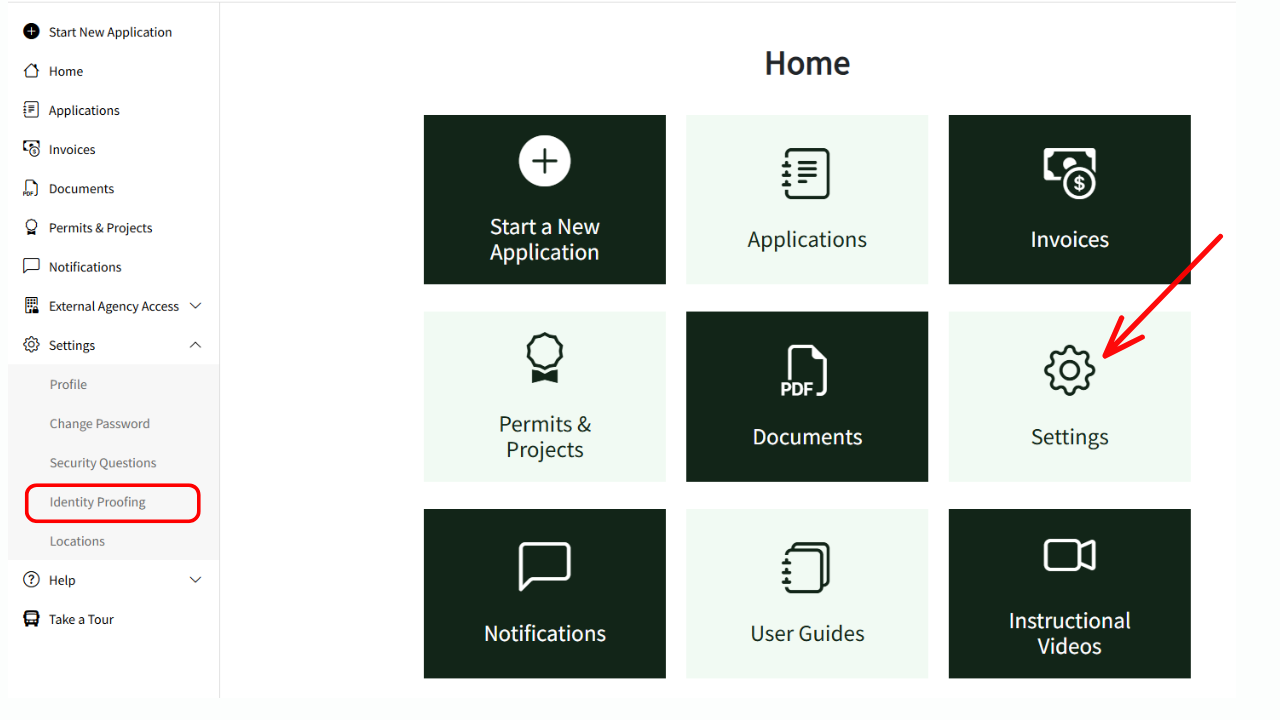
After logging into AccessDEQ, select “Identity Proofing” under the Settings section of the left-hand navigation menu. Alternatively, from the Home screen, select the “Settings” tile, then the “Identity Proofing” tile.
-
2
Start the Identity Proofing process
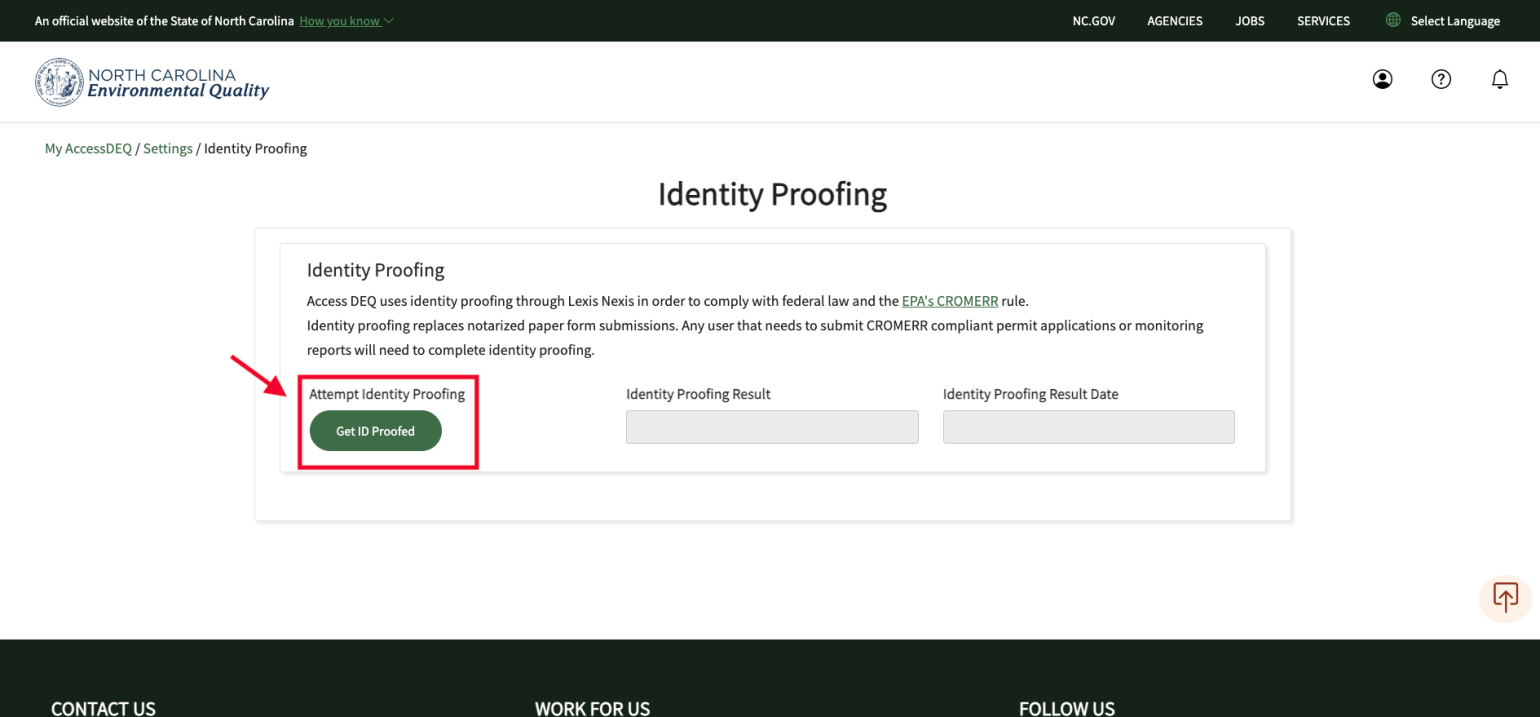
Click on the green “Get ID Proofed” button.
-
3
Complete Identity Verification Form
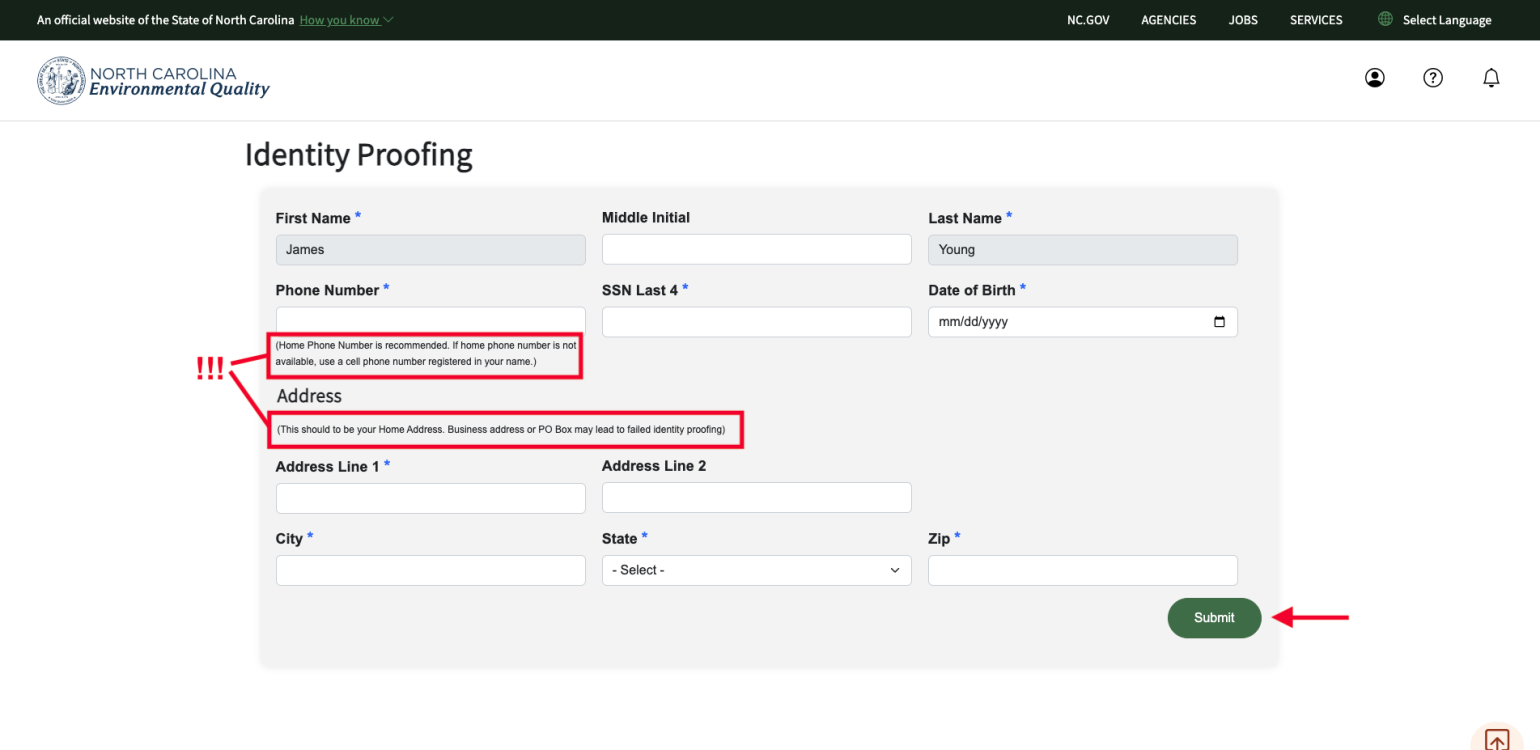
Enter the requested information:
- Middle initial
- Phone number (home # recommended, or registered cell phone #)
- Address (home address is recommended)
- Last 4 digits of your SSN
- Date of Birth
Once you hit the “Submit” button, the screen will refresh, and after a short time, it will display whether the info you entered “exceeded” (passed) or "did not exceed" (failed).
Troubleshooting Tips
- Identity proofing will use the first and last name you entered when creating your portal account. If, for some reason, the info you provided did not pass identity-proofing, it's probably related to a nickname, maiden name, or phone number entered. You can enter different info and try again. For instance, add/remove the middle initial, try a different phone number you are associated with.
- If the fields are locked/not editable, please contact us with your info and details so that we can unlock your info and assist with this process.
- Sometimes publicly-available information is erroneous. In those rare cases, you may have to submit data to NCDEQ manually. Please contact us for details on how to submit your data manually
Please contact us for assistance, or if you have other issues this troubleshooting does not address.