
How to Reset your Password
-
1
Navigate to the AccessDEQ portal
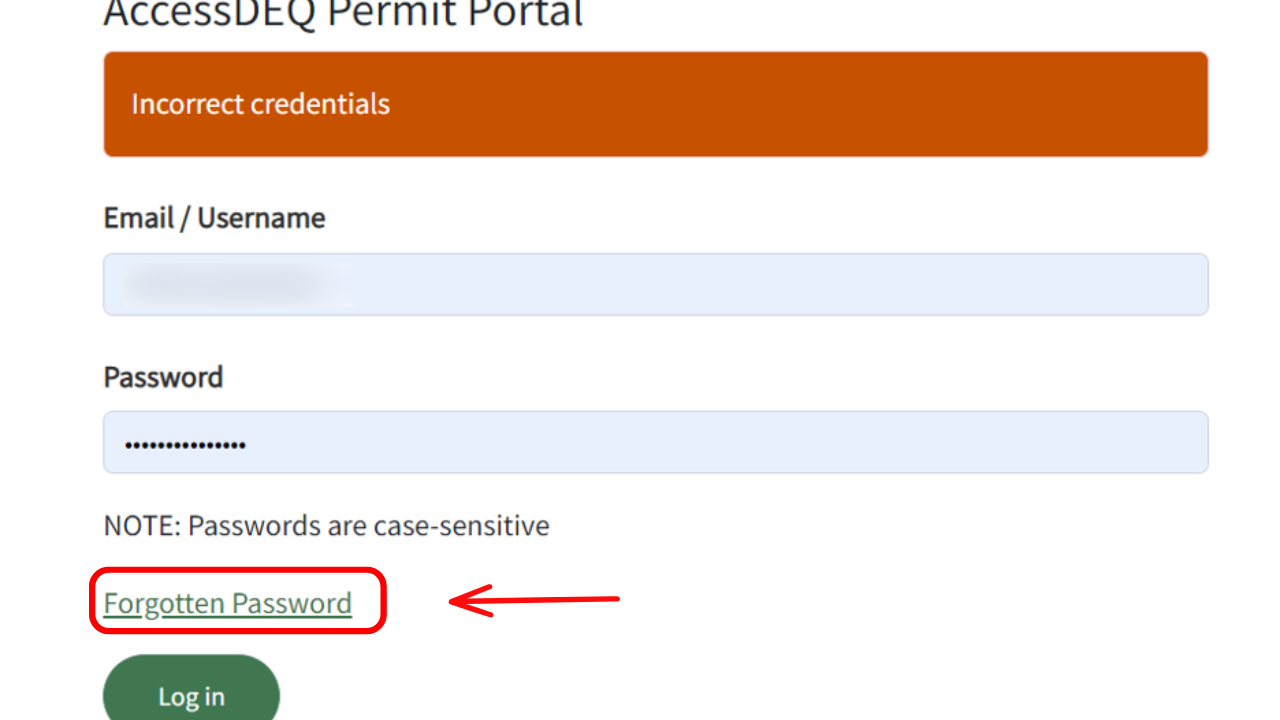
To reset, go to the AccessDEQ portal and select the “Forgotten Password” link located above the “Log-in” button.
-
2
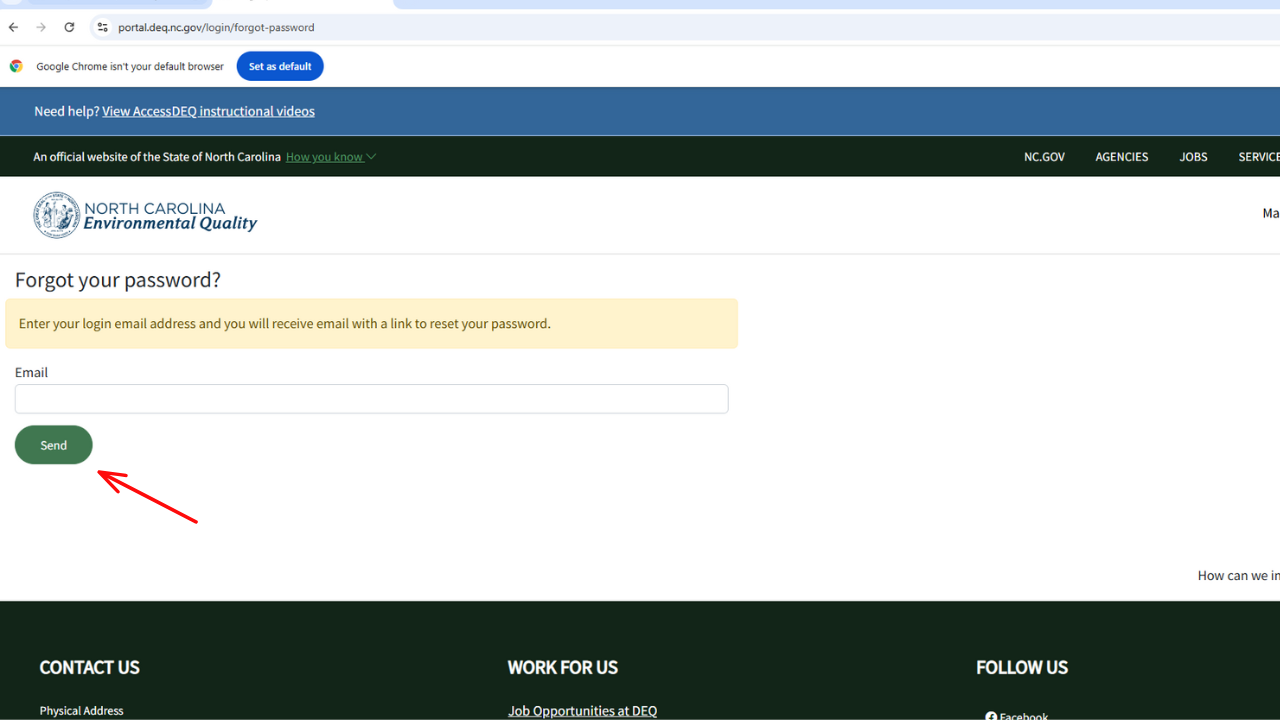
Enter your Login Email Address
Enter the email address you used to register with the portal. Then, select the "Send" button.
-
3
Check your Email to Reset your Password
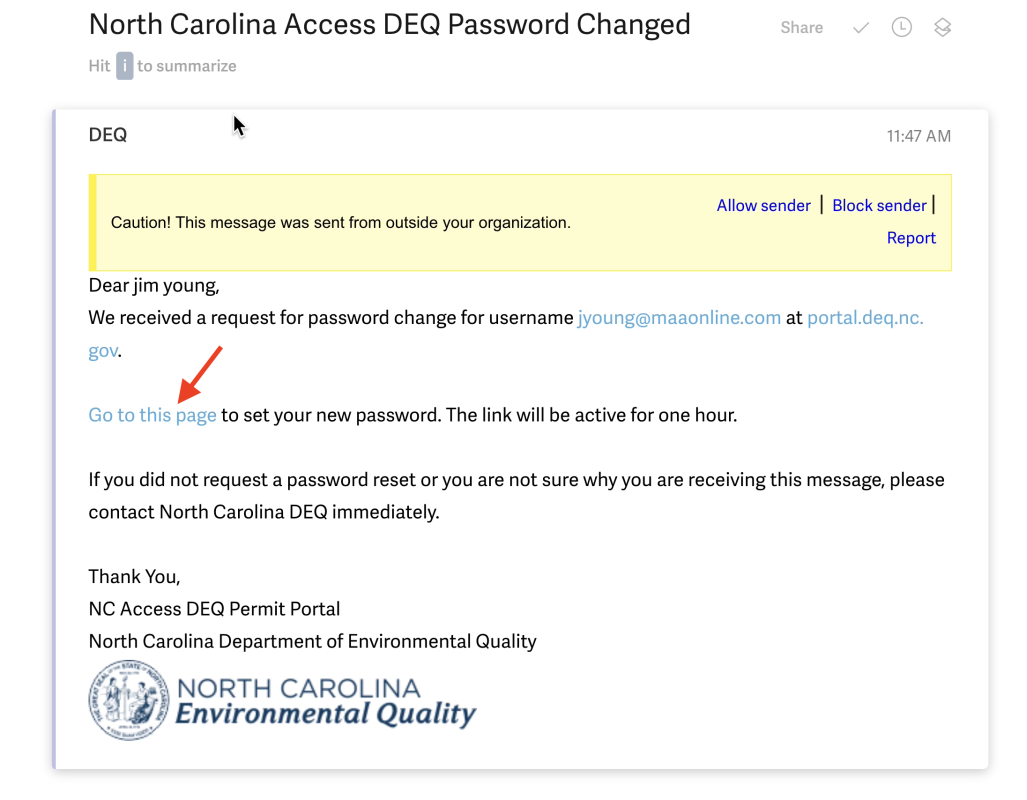
If the email you entered exists in our system, you’ll receive a message from DoNotReply-DEQPermits@deq.nc.gov with an activation code and a password reset link. The subject line will read "North Carolina AccessDEQ Password Changed".
In the body of the email, you'll find a link embedded in the text “go to this page.” Click that link to proceed. Please note that the link will expire after one hour, so be sure to access it within that timeframe.
If you don’t see an email in your inbox after a few minutes, check your spam folder before trying again.
-
4
Enter your New Password
When the “Reset Password” page loads, enter your new password into the password field and then also into the “Repeat new password field." When done, click on the “Save” button. You can now log in to the system using your new password.
Check out this YouTube video for more!