
How to Start, Submit, & Edit a Permit Application
-
1
Navigate to the AccessDEQ Portal home page
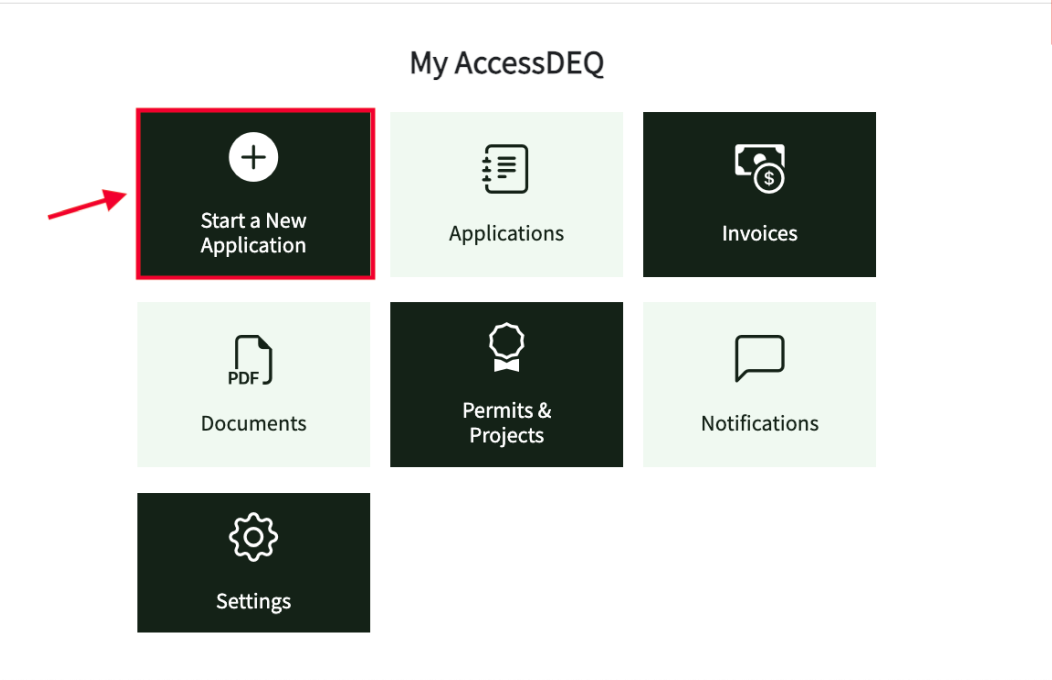
There are two primary ways to start an application in the AccessDEQ Portal. You can select the “Start New Application" tile from the Home screen to begin the application process.
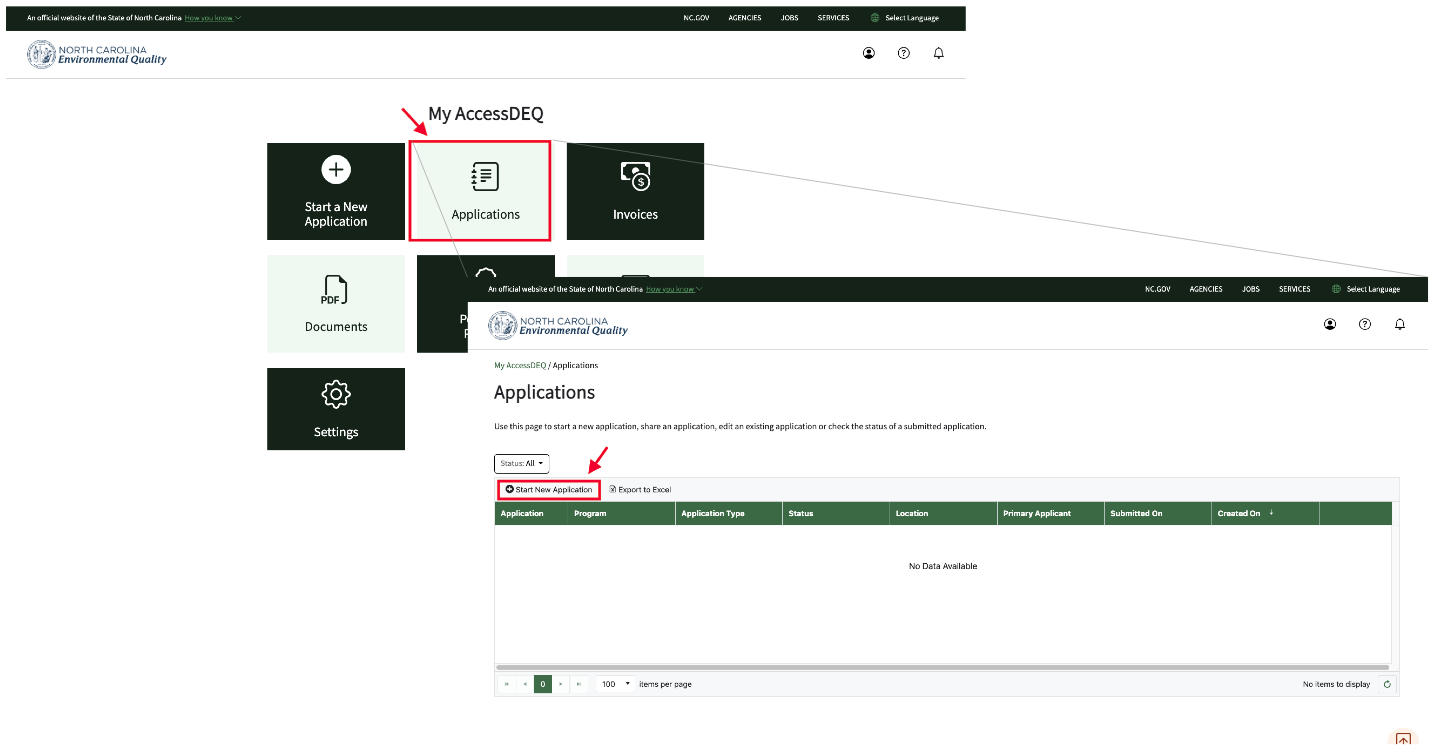
Or you can click on the “Applications” tile and then select the small “+ Start New Application” button just above the Applications table grid on the top left.
-
2
Complete and Submit Your Application
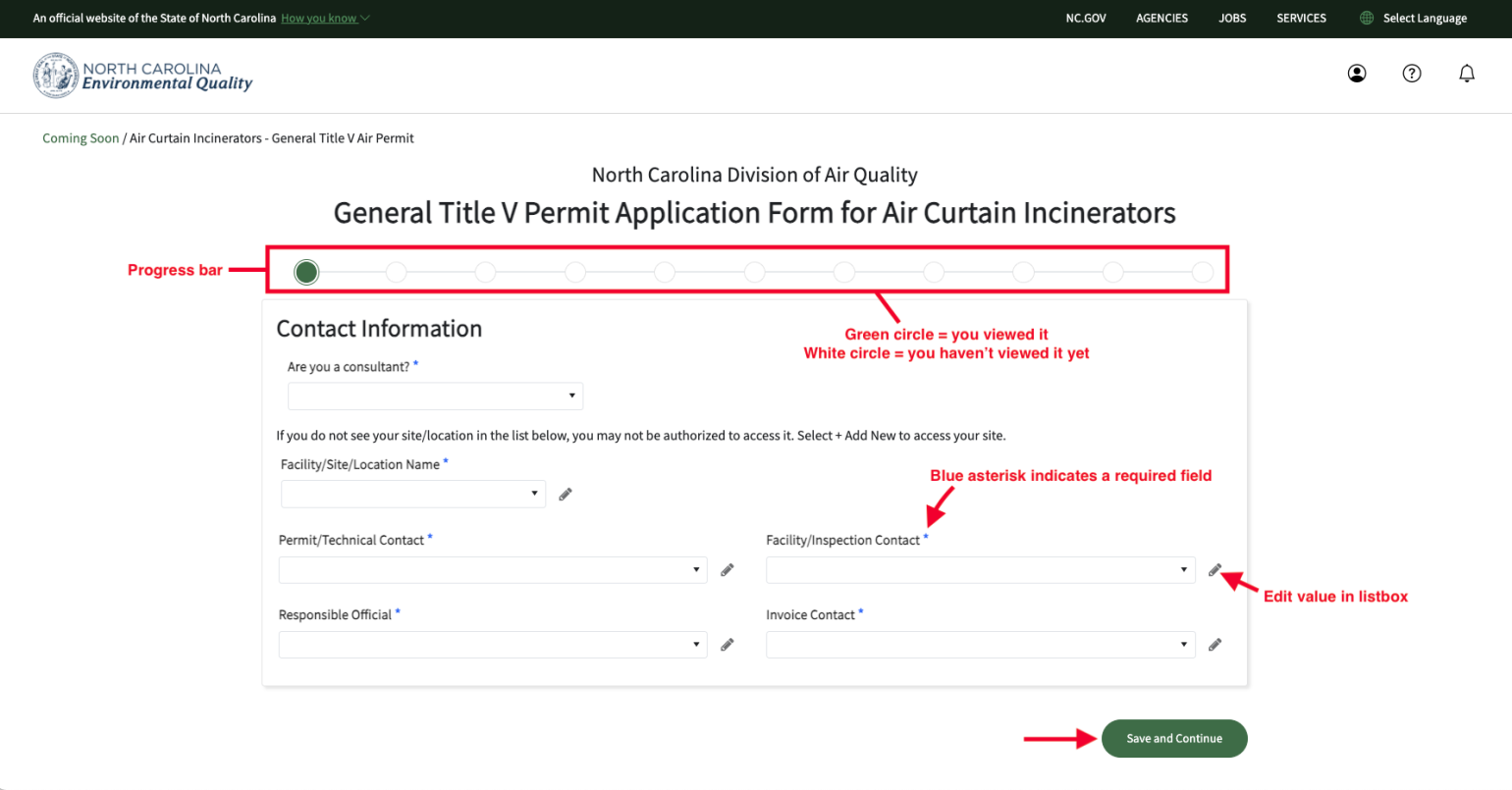
As you move through the permit application screens, a row of white dots at the top tracks your progress—each dot turns green as you complete a page. At the bottom right of each screen, use the “Save and Continue” button to proceed. Required fields must be completed before advancing.
At the end of the application, click the green “Submit” button to send your permit to NCDEQ. You’ll have the opportunity to review your completed application as a PDF before submitting.
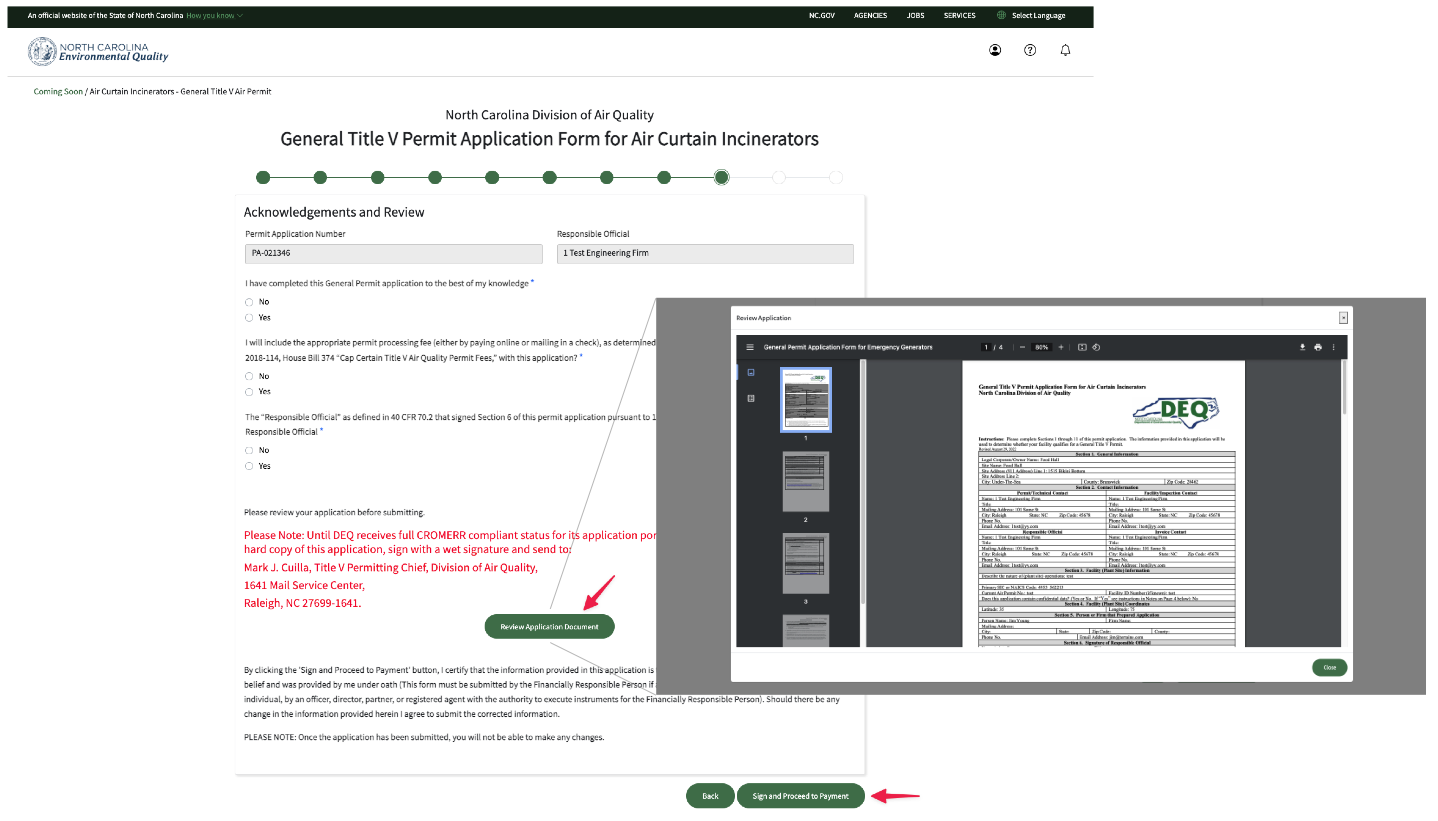
If the “Submit” button isn’t available, your account may not have submission permissions for that permit type. For help, refer to the Sharing Applications section, visit the Troubleshooting page, or use Contact Us.
-
3
Steps to Viewing and Editing Permit Applications
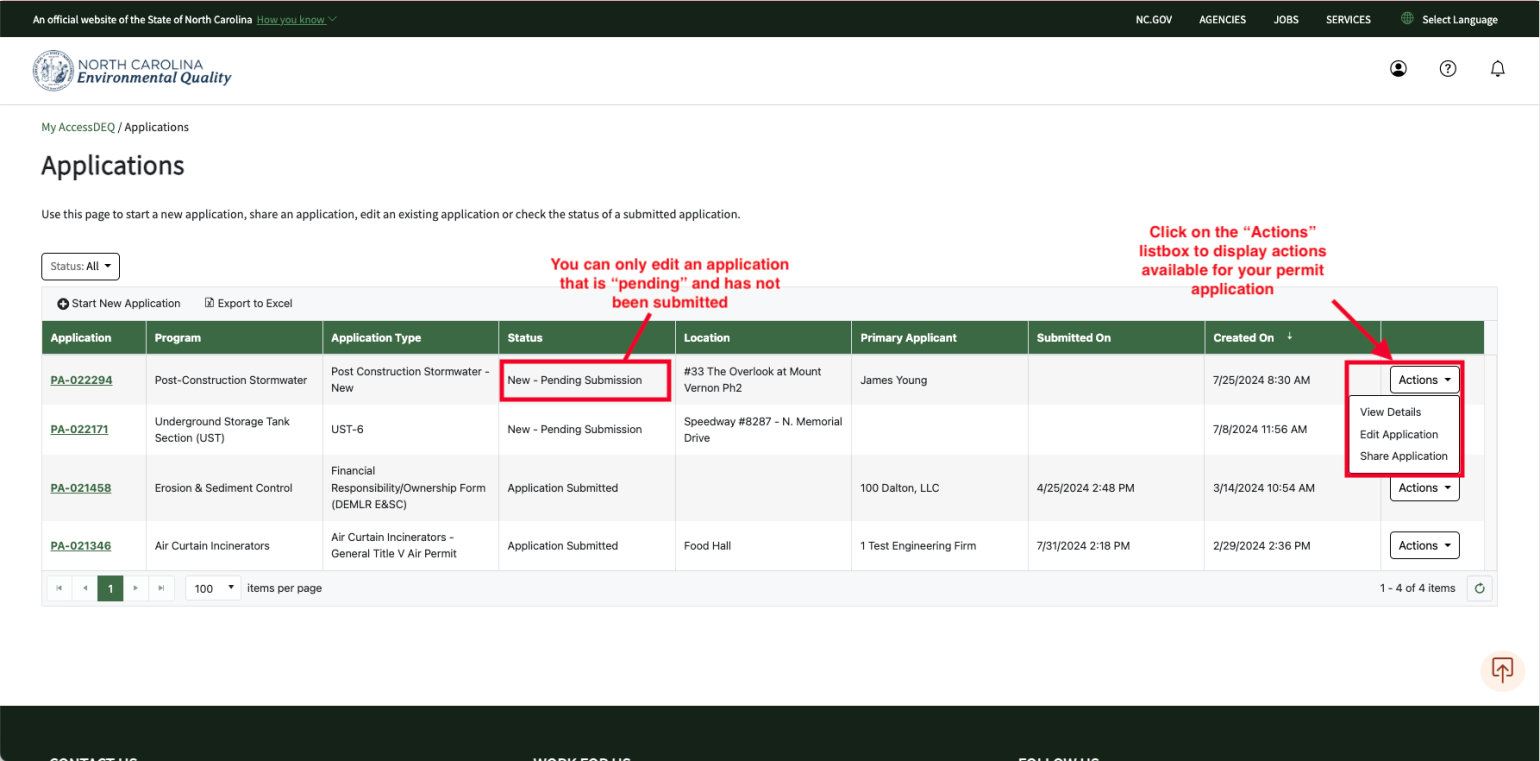
Select “Applications” from the left-hand menu or click the “Applications” tile on the Home page.
Your applications will appear in a table grid. Use the “Actions” menu in the far-right column to view available options.
Only applications with the status “New – Pending Submission” can be edited.
You can also click the application number in the “Application” column to open it for editing or viewing, depending on its status.
Notes
- You can start an application, click “Save and Continue”, and return to it later—your progress will be saved each time you click that button.
- Only applications with a status of “New – Pending Submission” or “Awaiting Applicant” can be edited. Once submitted, applications can no longer be changed.