
How to Complete a Digital DOSA Request
-
1
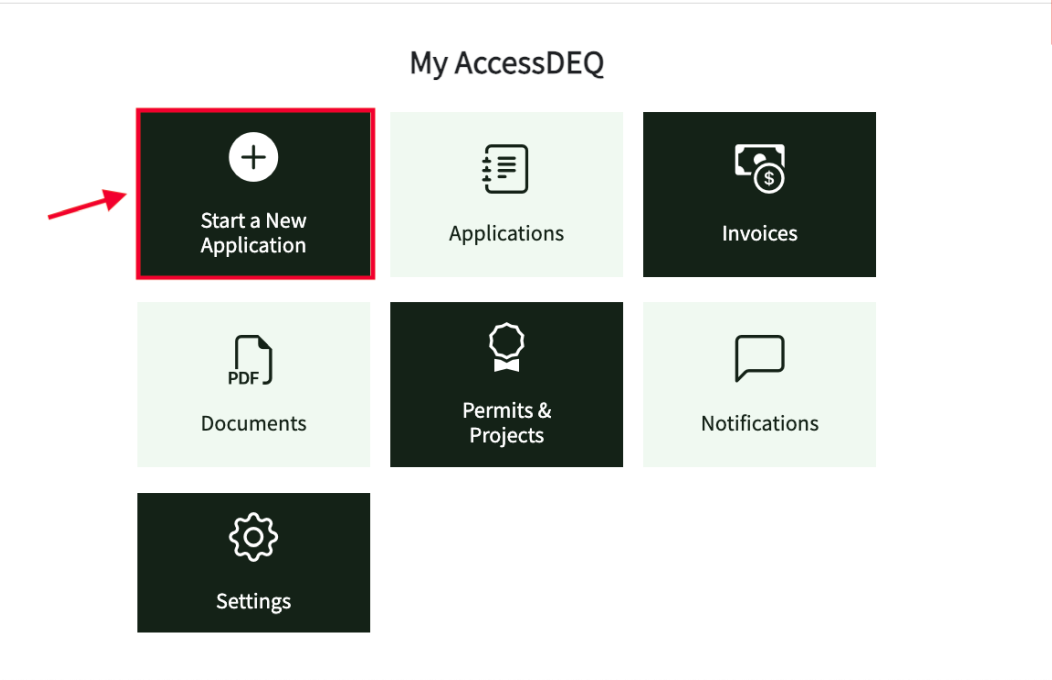
Navigate to the AccessDEQ Portal and Start an application
Follow the steps on the How To page to begin the application process: Submitting and Editing a New Permit Application | NC DEQ
Once you've reached the point where you are ready to sign the application, proceed to step two.
-
2
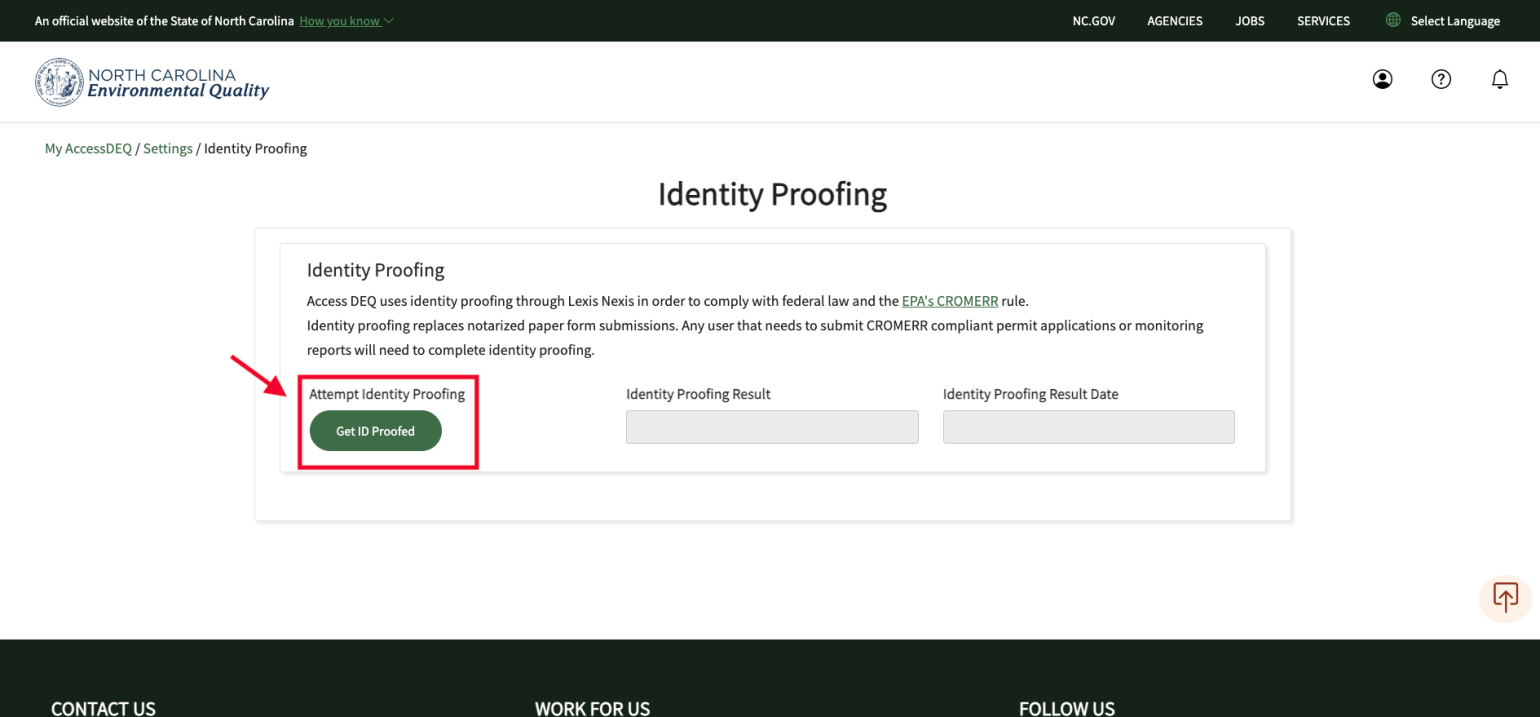
Start the Identity Proofing Process
Follow the steps on the How To page to complete the identity proofing process: Getting Identity Proofed in the AccessDEQ portal | NC DEQ
Once you've completed the identity proofing process, or if you have previously completed it, continue to step three.
-
3
Select your role within the organization
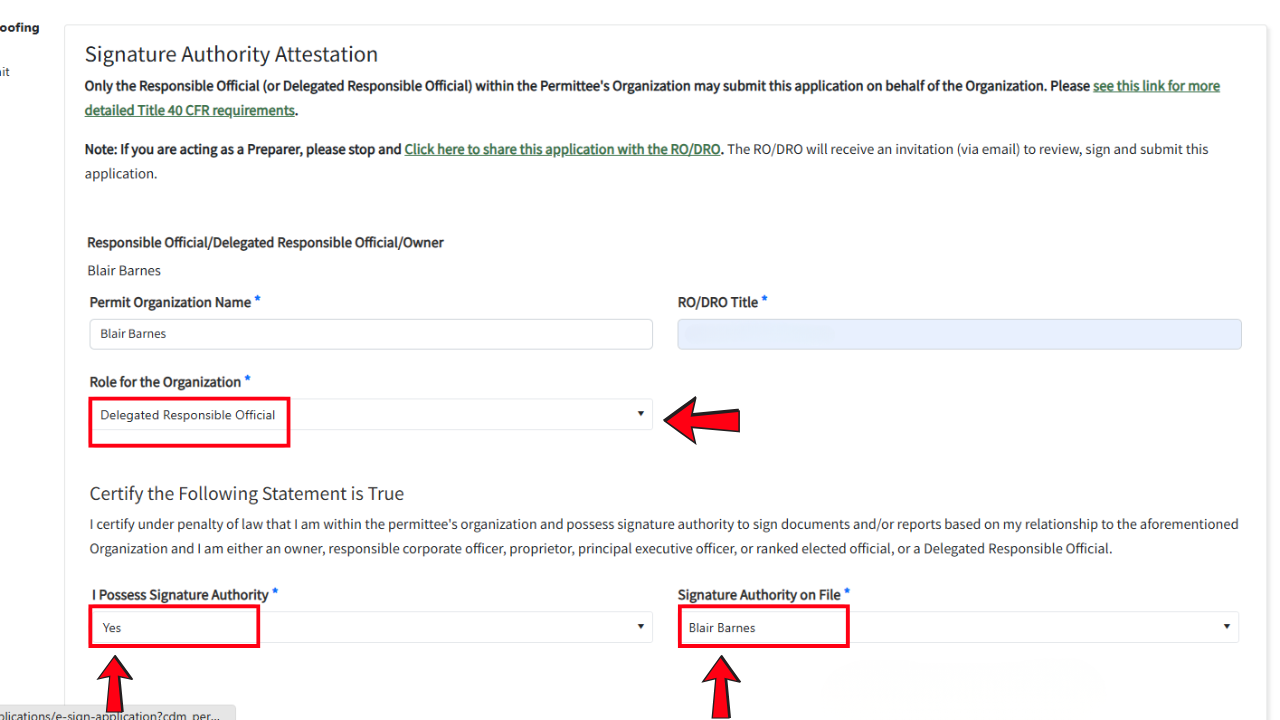
On the Signature Authority Attestation screen, your name will automatically populate, and you will then select your role within the organization. In the DRO/RO Title section, your browser may attempt to auto‑fill your email address. Simply type over it and enter your correct title within the organization.
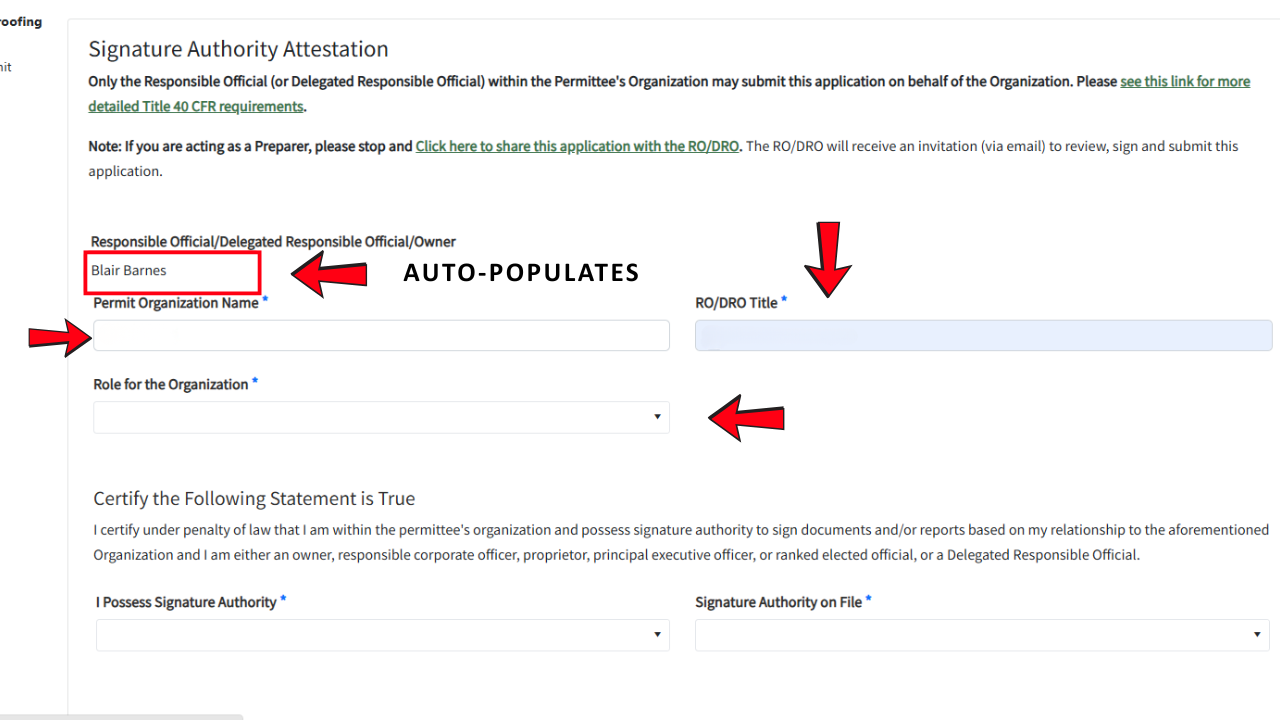
Please note that if you are a Responsible Official (RO) or an owner, you will not have to fill out the Digital DOSA form, just select RO for your role within the organization and choose "Yes" for "I Possess Signature Authority".
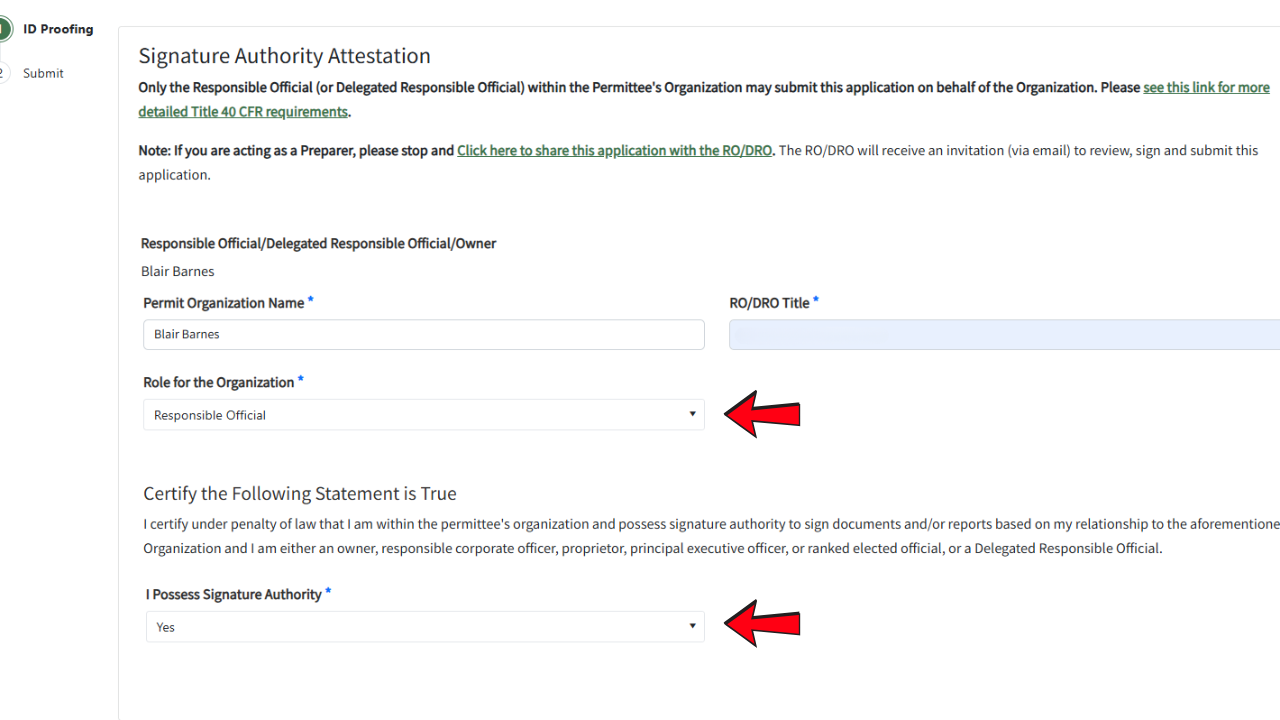
Also, if you’ve already completed the DOSA process and your role within the organization is DRO, you can select “Yes” to the statement and choose the signature authority record already on file for review and approval.
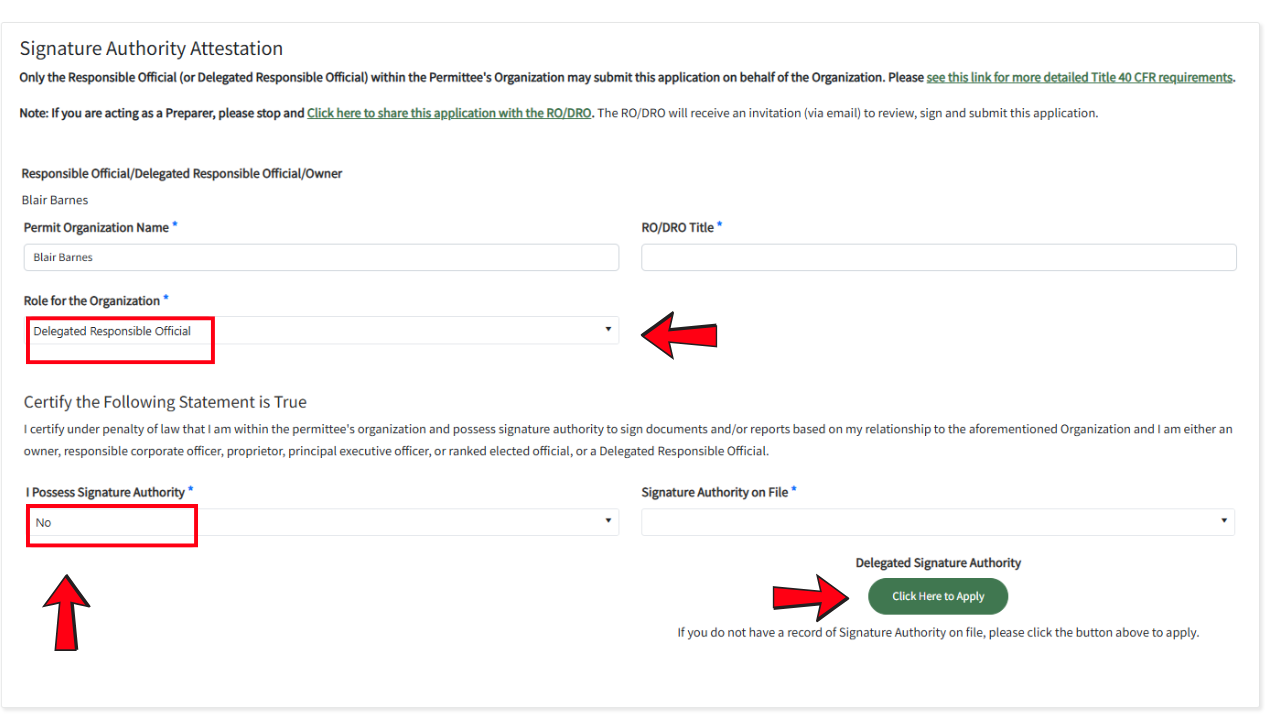
However, if this is your first time requesting a DOSA, select DRO as your role within the organization. Then, at the bottom of the screen, choose the pop‑up button labeled “Delegated Signature of Authority — Click here to apply.”
-
4
Choose the DOSA method
For the Digital DOSA method, we will select online.
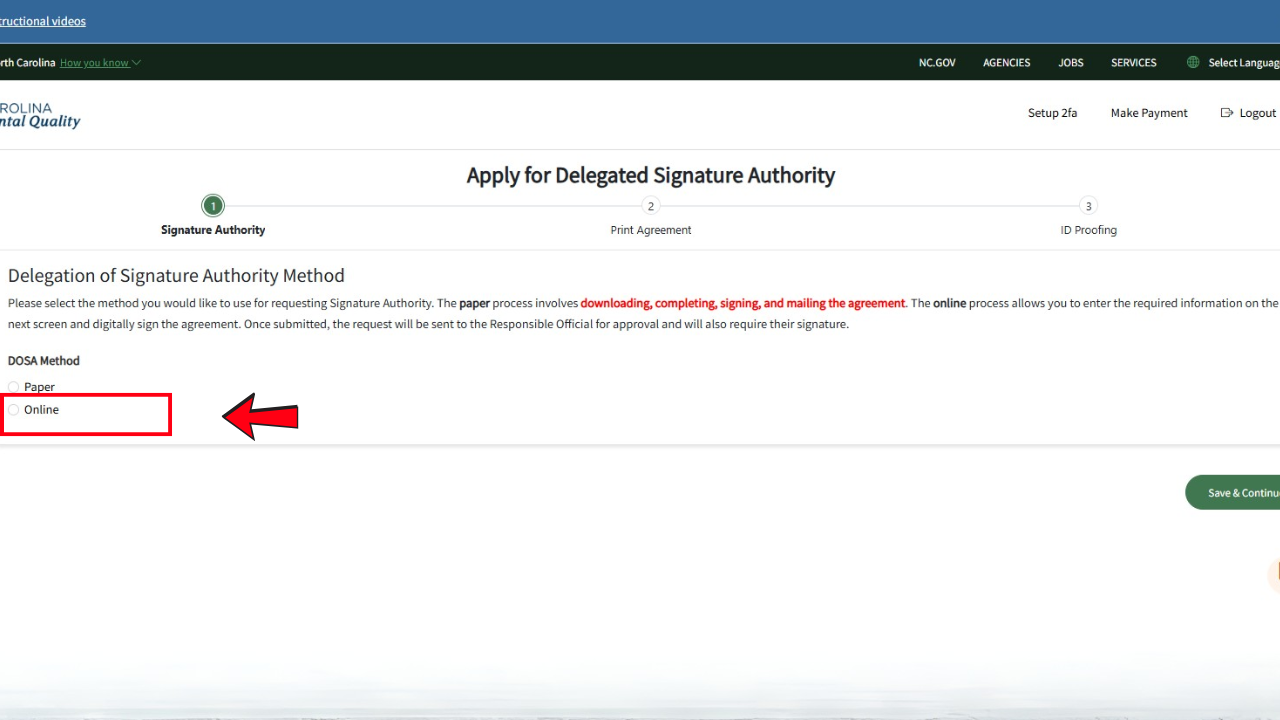
Please note that the paper DOSA option is still available for those who prefer to complete the process manually; however, applicants who choose the paper method must complete all required steps, including downloading, completing, signing, and mailing the agreement.
After selecting the online method, click save and continue.
-
5
Complete the DOSA request form
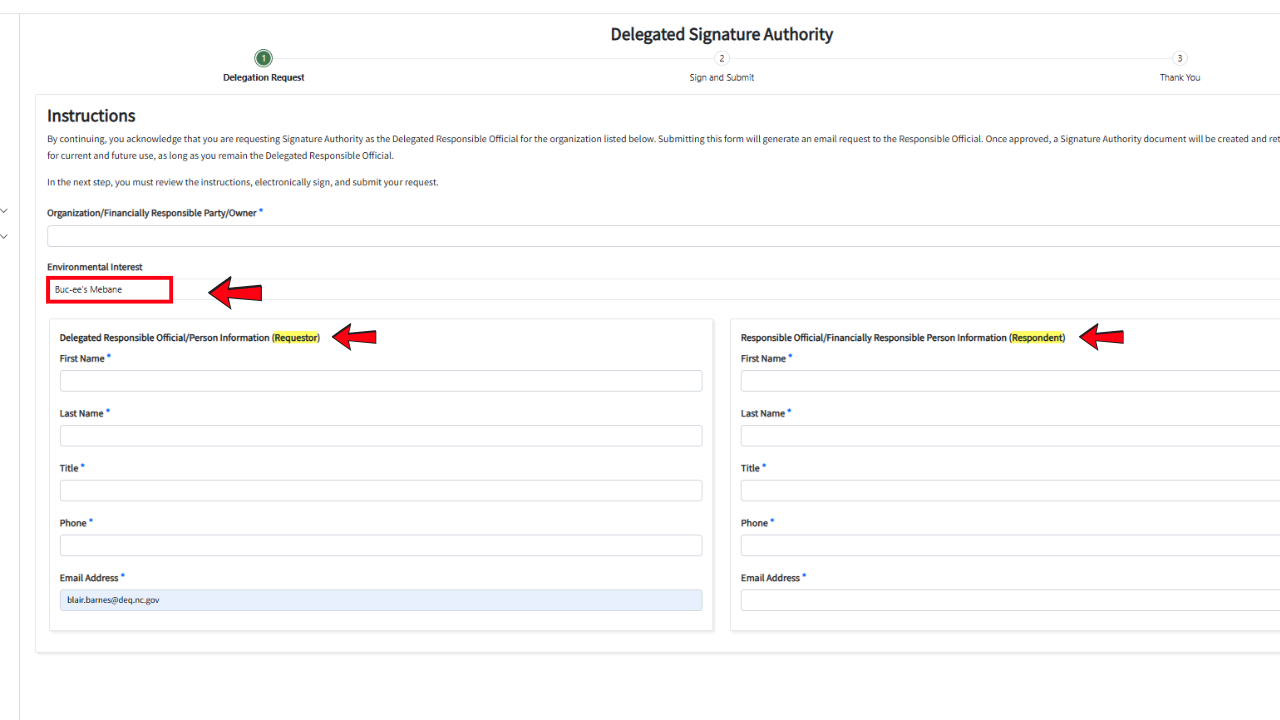
On the request screen, the environmental interest will auto‑populate. From there, you will enter your information as the requestor (name, title, phone number, and email). Then, provide the same information for the Responsible Official (RO) to whom you are sending the request. Then, press save and continue.
-
6
Electronically sign and submit the document
Download and review the contents of Delegation of Signature Agreement.
Click the Submit button to continue with the submission process.
Note: The Responsible Official and the Designated Responsible Official will both need to sign and submit this agreement.
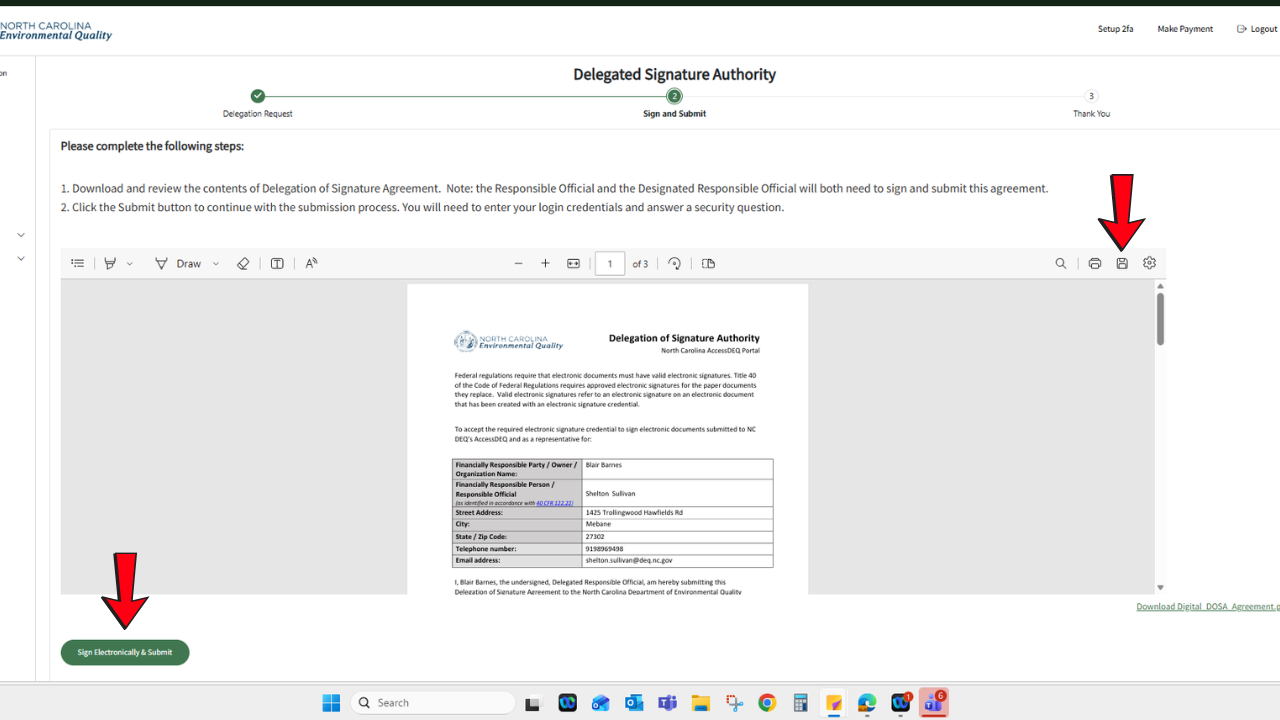
Next, you will need to enter your login credentials and use your selected two-factor authentication method to sign and submit.
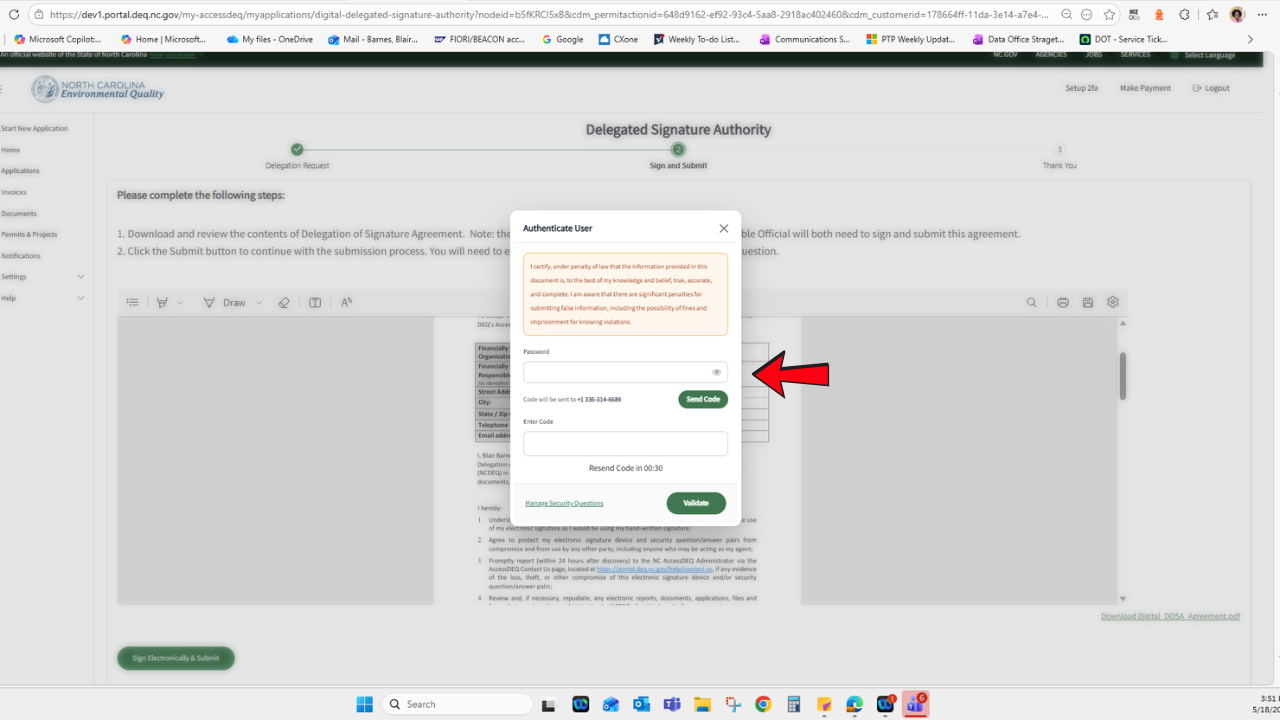
If approved, you will receive an email confirming that your request for signature authority for your organization has been granted. From that point forward, you will not need to submit additional requests for signature authority for the approved organization.
To complete the submission process, log in to AccessDEQ and you will see your approved signature authority listed and available for use.
Check out this YouTube video for more!